
Set up an evaluation or survey
Choose the questions and participation approach before creating the evaluation.
- Evaluations
- New evaluation
Before you start
Know the purpose of the review, who should respond and the reporting period.
- Agree why you are asking the questions and how the findings will be used.
- Know the audience, review period and intended closing date.
Step by step
Start the setup
Open Evaluations and choose New evaluation. Select the evaluation type or instrument that fits the review.
- Choose New evaluation and browse or search the available instruments. Select the one whose questions fit the purpose, not just a similar-sounding title.
Start a new evaluationExample workspaceEnlarge screenshot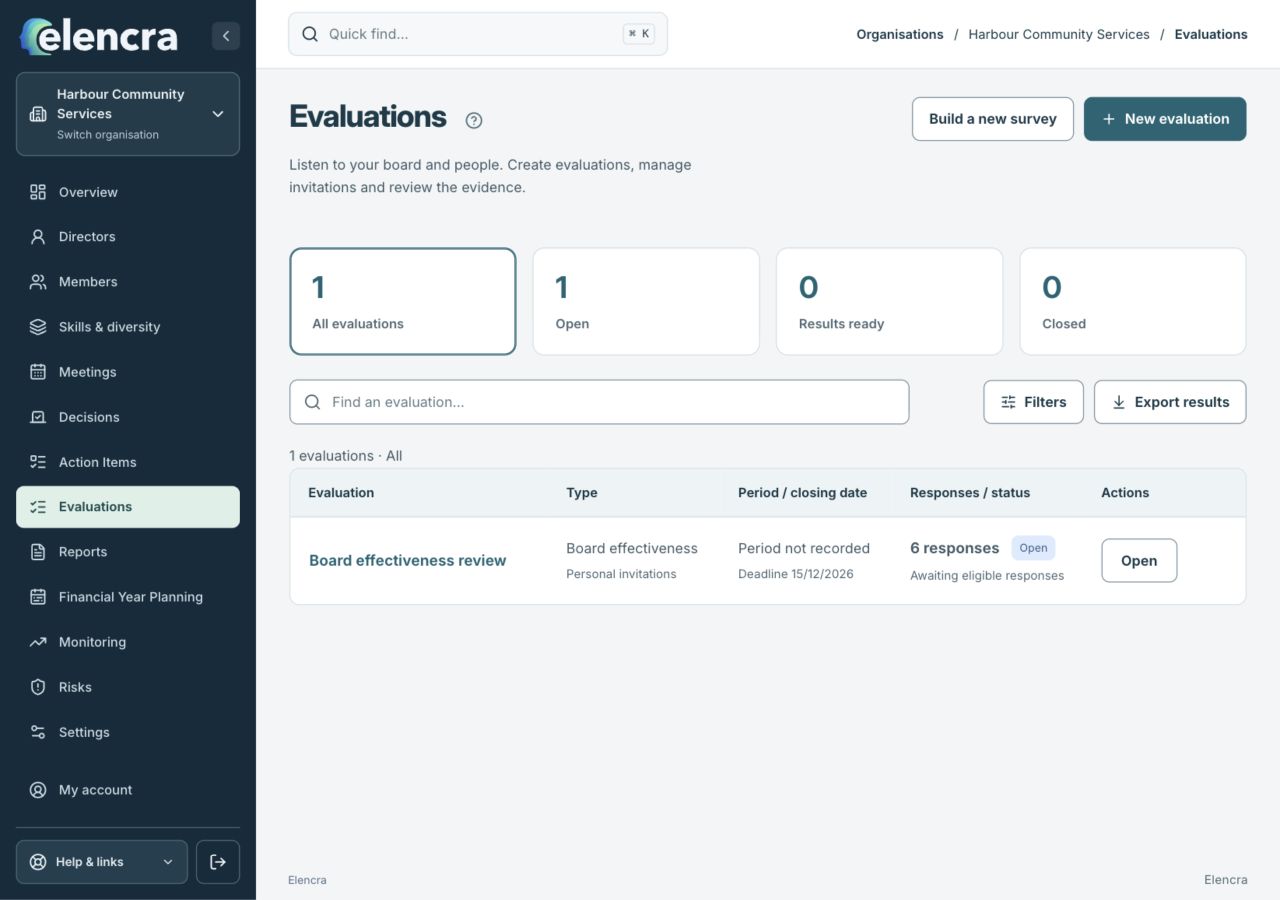
New evaluation opens the guided setup. Open is for an existing review.
Actual app interface with fictional records. Your permissions and screen size may change the options shown.
Review the questions
Read or preview the questions. If creating a custom instrument, use Build a new survey and review its required answers, sections and question rules.
- Read the question set before continuing. For a custom survey, check that required questions, answer options and any hidden-question rules make sense together.
Choose questions that fit the purposeExample workspaceEnlarge screenshot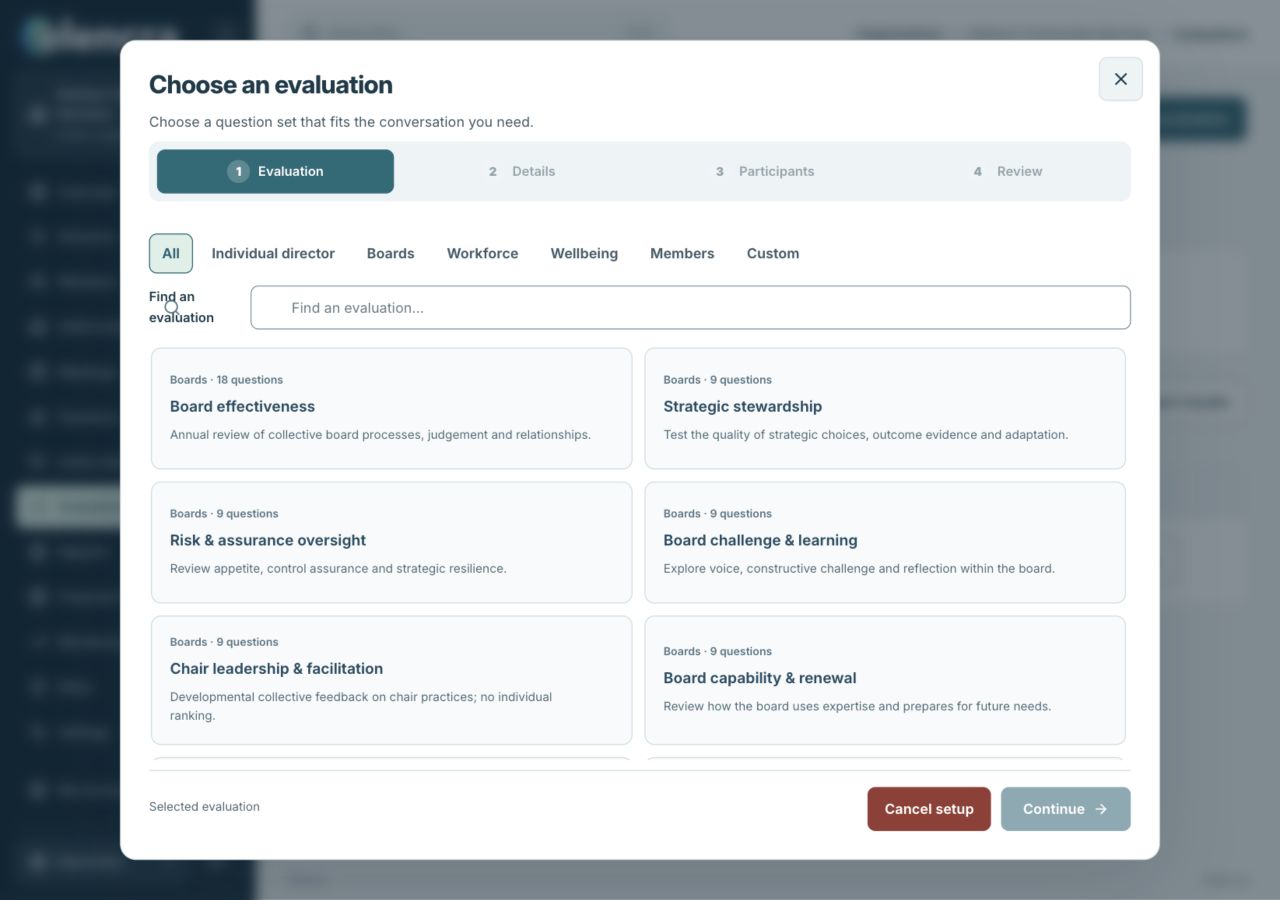
Use the instrument descriptions and question preview before completing setup.
Actual app interface with fictional records. Your permissions and screen size may change the options shown.
Set the review details
Enter Evaluation name, financial year where relevant and Closing date. The displayed evaluation deadline is end of day UTC; check that against your intended local deadline.
- Use a name that identifies the review and period. Check the UTC deadline note carefully if participants have been told a local closing time.
Choose participation
Review How will people participate? and choose the supported private or shared approach appropriate to the evaluation.
- Choose the participation method suitable for the review. A personal invitation belongs to its intended recipient and should not be passed around as a general survey link.
Review the setup
Use Review setup and Preview the questions before the final creation action. Adding recipients and sending invitations are separate steps.
- Check the final summary and question preview before creating the evaluation. Creation alone does not confirm that people have been invited or that email was sent.
For example
For a community consultation, choose questions and a participation method suitable for that audience. Do not use a private director evaluation merely because its title sounds similar.
What you should see
The evaluation is created with a reviewed set of questions, period and participation settings.
- The questions and participation method fit the intended audience.
- The name, period and closing date match what participants will be told.
If something looks different
If the right directors are unavailable, save their profiles first. Preview responses are not real submitted results.
A common question
Can I use a collective review for a private individual reflection?
Choose the instrument designed for that purpose. Collective reporting and identified director self evaluation have different audiences and privacy rules. Review the instrument description before setup.
Did this help you move forward?
Your response stays in this browser on this device.
Updated 16 November 2026. Your organisation’s permissions and settings can change the options you see.