
Review and send survey invitations
Check the contact list and message before sending private participation links.
- Evaluations
- Open evaluation
- Survey invitations
Before you start
Create the evaluation and choose its supported invitation workflow. Keep private participation links with their intended recipient.
- Have a checked list of intended recipients and the correct evaluation.
- Decide whether you are inviting new people or deliberately reminding existing recipients.
Step by step
Open the invitation register
Open the evaluation’s Survey invitations. Review existing contacts before adding more.
- Review existing names and participation status before adding contacts. This avoids duplicate work and helps you select the people who actually need a message.
Add contacts
Expand Add people, then use Add a person, Add directors, Add members or Import CSV. Download template shows the expected name and email columns.
- Expand Add people. Use Add a person, Add directors, Add members or Import CSV as appropriate. The template accepts email and an optional name, up to 500 people.
Review the contact draft
Check names, addresses and flagged issues before creating invitations. Remove mistaken or duplicate entries.
- Correct highlighted rows before creating invitations. Recheck the domain in each email address; the private link must reach the intended person.
Preview the email
Use Preview email or Review & send for the selected recipients. Check the evaluation, deadline and destination addresses.
- Select the intended contacts and use Preview email or Review & send. To send an intentional reminder, first review the option for previously sent invitations.
Check contacts before sendingExample workspaceEnlarge screenshot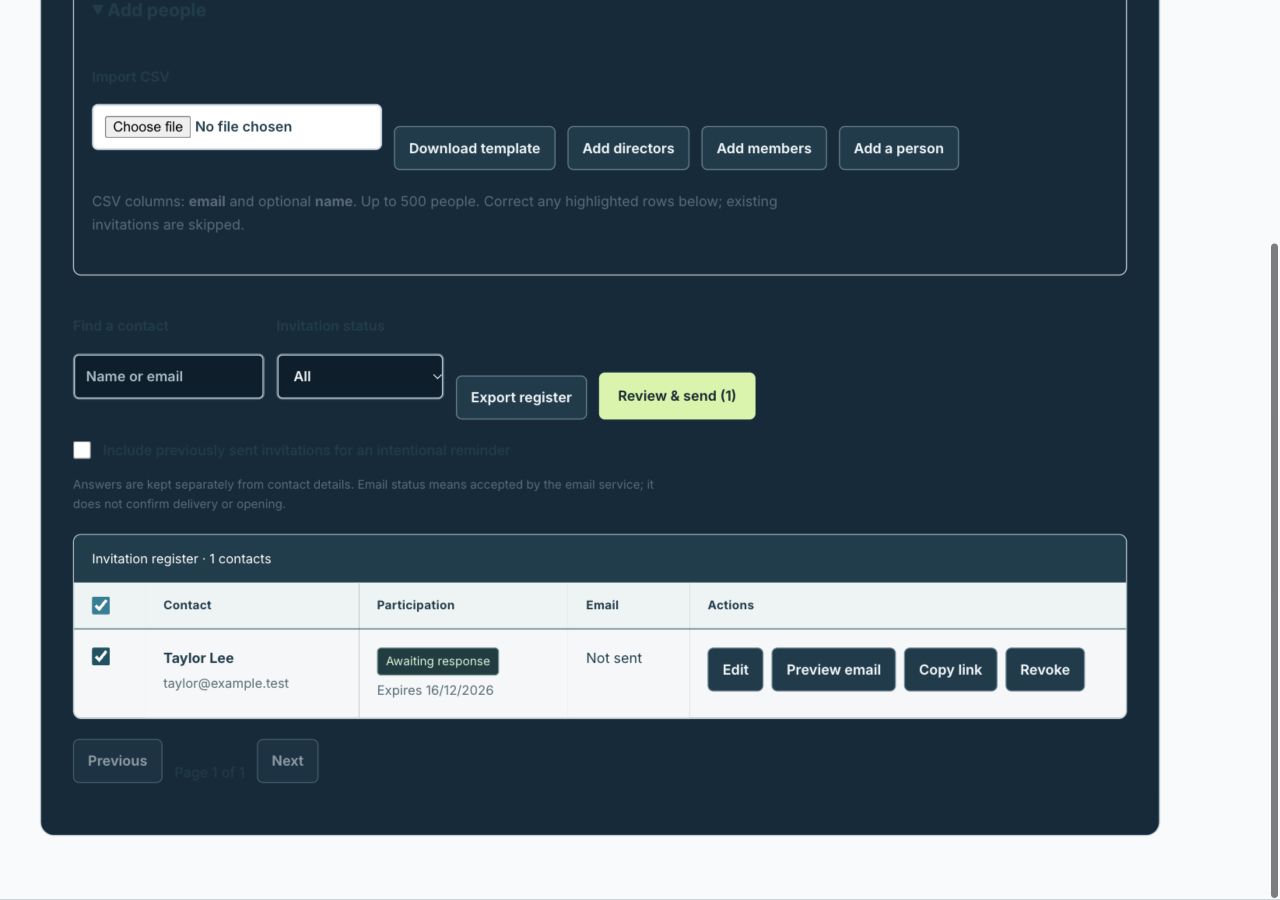
This view shows the expanded Add people controls and a selected fictional recipient. Review & send leads to a separate confirmation.
Actual app interface with fictional records. Your permissions and screen size may change the options shown.
Confirm sending
Use the explicit send confirmation only after reviewing recipients. Check the resulting register status; a created link or preview is not a sent message.
- Read the final recipient list and confirmation before sending. Afterwards inspect each result; email-service acceptance does not prove delivery, opening or survey completion.
For example
Import five intended respondents, then review all five addresses. If only three need a reminder, select those three rather than sending again to the entire register.
What you should see
The register records the invitations and sending result for the selected contacts.
- Only the intended recipients were selected for the send.
- The register distinguishes email status from participation status.
If something looks different
Editing a contact replaces its private link and stops older invitations working. Use intentional reminders carefully, and check sending status before retrying a failed or uncertain request.
A common question
Can I forward someone else’s private participation link?
No. Use the recipient’s own invitation. Ask the authorised organiser to add or correct the intended contact rather than forwarding another person’s link.
Did this help you move forward?
Your response stays in this browser on this device.
Updated 16 November 2026. Your organisation’s permissions and settings can change the options you see.