
Record an action from a meeting
Turn an agenda discussion or decision into a clear piece of follow-up.
- Meetings
- Open meeting
- Minutes
- Add action
Before you start
Save the relevant meeting and agenda item. Decide who is accountable and what completion should look like.
- Agree the specific task, accountable director and due date.
- Know whether it comes from a decision or from the agenda discussion alone.
Step by step
Open the relevant item
In the meeting workspace, choose Minutes and select the agenda item the action belongs to.
- Choose Minutes and select the relevant item in the outline. Check the item heading; the action will inherit that connection automatically.
Choose Add action
Use Add action in the item’s outcomes. If you are recording a decision first, the editor can offer to add an action immediately afterwards.
- Under Decisions and actions, choose Add action. Selecting discussion text beforehand can provide starting wording, which you should still review.
Add an action to the meeting itemExample workspaceEnlarge screenshot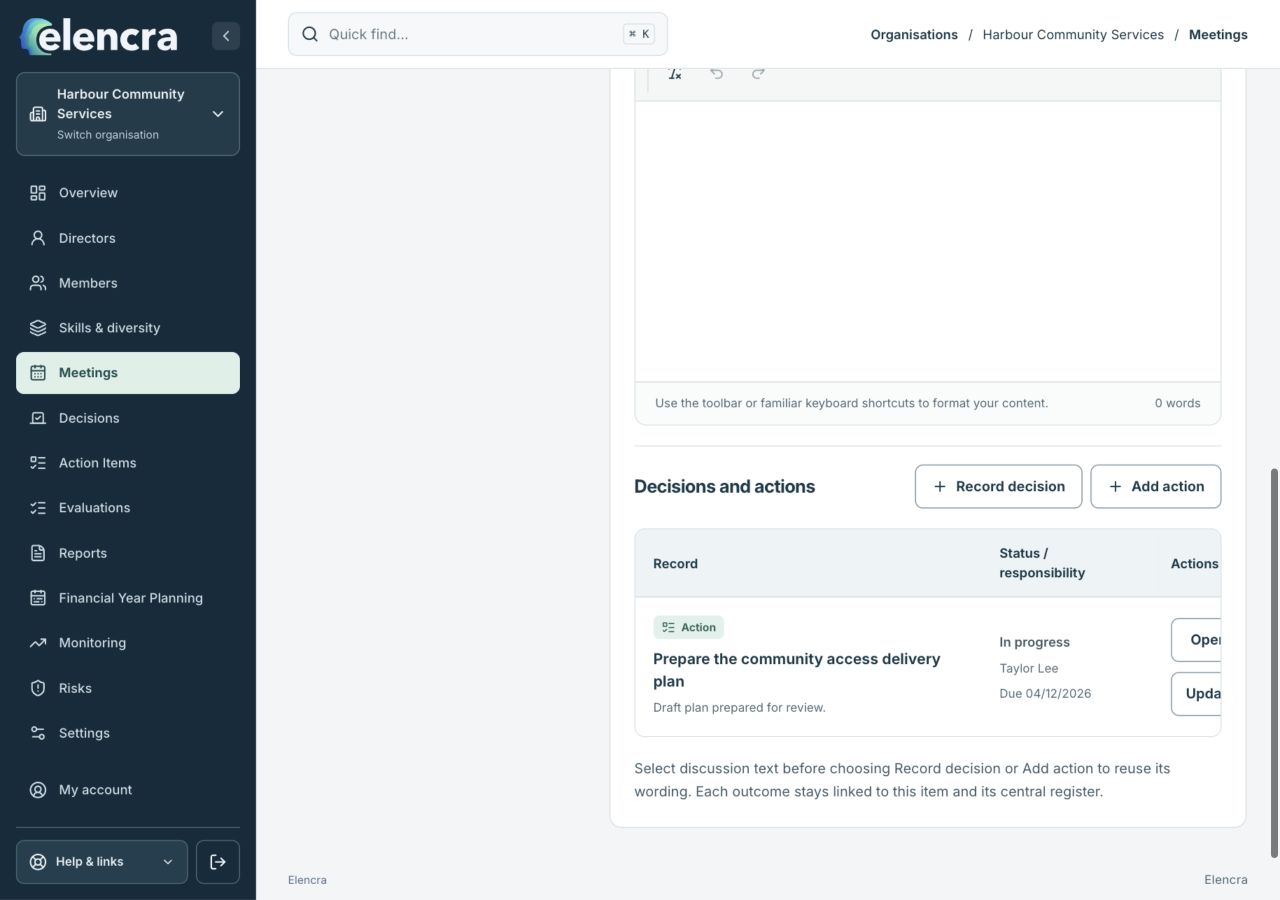
In Minutes, the Decisions and actions area links the new task to the selected item.
Actual app interface with fictional records. Your permissions and screen size may change the options shown.
Write an achievable task
Enter a concise Title, select the Accountable director and add a realistic Due date.
- Use a verb and a concrete result: “Prepare the delivery plan”, for example. Add Instructions if the owner needs scope or completion criteria.
Give the action a clear ownerExample workspaceEnlarge screenshot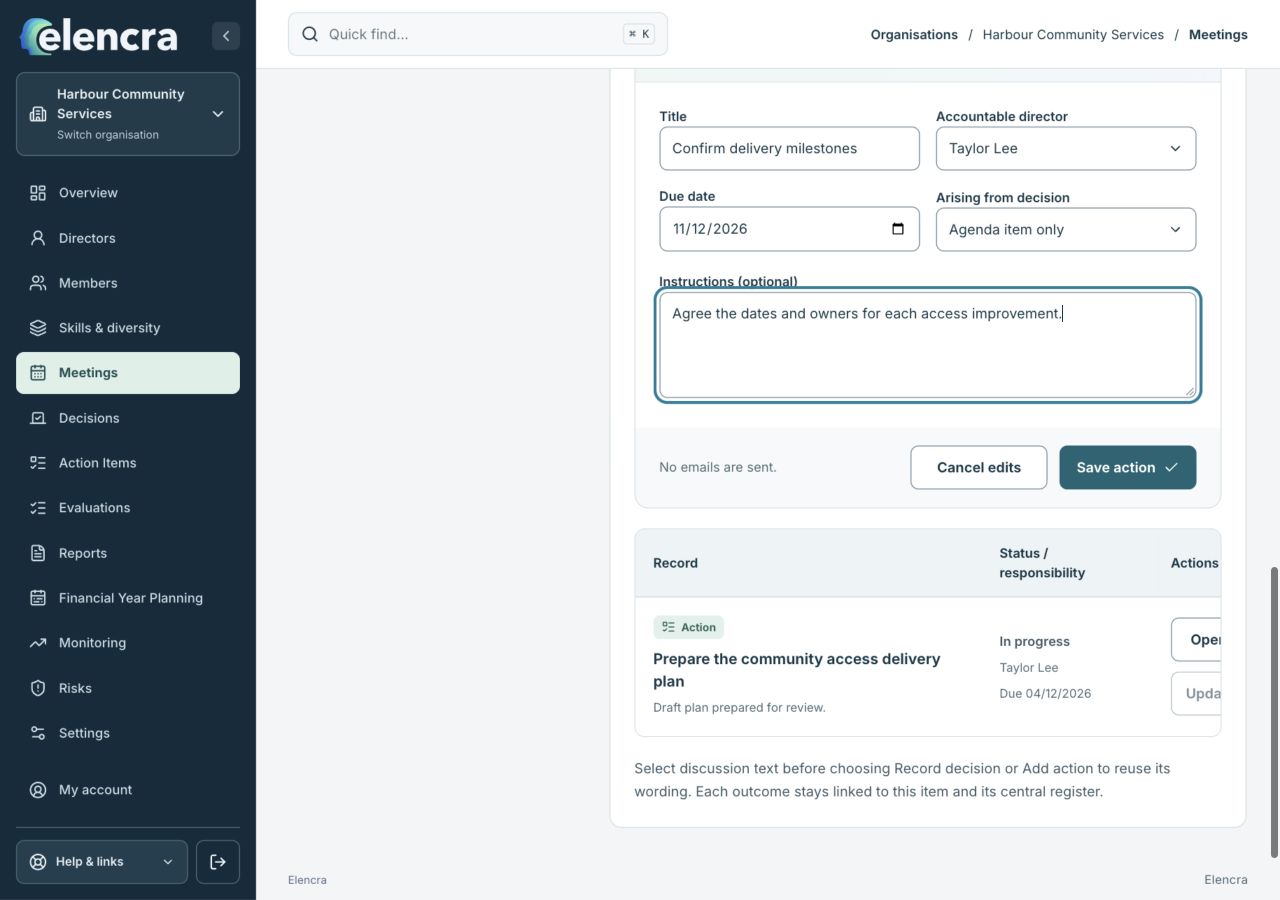
Review the title, accountable director, deadline and source before saving.
Actual app interface with fictional records. Your permissions and screen size may change the options shown.
Check the connection
Choose whether the action arises from a recorded decision or the agenda item only. Do not invent a decision just to attach a task.
- Use Arising from decision only when a suitable decision has actually been recorded. Otherwise keep Agenda item only; a task does not require an invented resolution.
Save and check follow-up
Save the action and confirm it appears with the item. Use Action Items for ongoing updates and ownership. Saving the action does not send an email.
- Choose Save action, then check the linked outcome and central Action Items register. The screenshot form is a draft; the save control is the separate final step.
For example
“Prepare the delivery plan for the community program” is one task. Name an accountable director and a due date; link it to the budget decision if that is what authorised the work.
What you should see
The action has a traceable meeting source, an owner and a due date where known.
- The action is linked to the correct meeting item.
- Its owner, deadline and instructions make the next step clear.
If something looks different
If a person is missing, review their director record or ask an Administrator. Avoid assigning the task to an unrelated person as a placeholder.
A common question
Who should be the accountable director?
Choose the director responsible for making sure the action is completed. Instructions can describe help needed from others. Avoid creating duplicate actions just to name several people.
Did this help you move forward?
Your response stays in this browser on this device.
Updated 16 November 2026. Your organisation’s permissions and settings can change the options you see.