
Build and publish a meeting agenda
Give each item a clear purpose and publish a deliberate version for participants.
- Meetings
- Open meeting
- Agenda
Before you start
Create the meeting first. Save agenda changes before attaching supporting material.
- Have the meeting’s purpose and the items that need discussion or a decision.
- Know which supporting papers belong to each item.
Step by step
Open the meeting workspace
Find the meeting in Meetings and choose Open. Use its agenda preparation controls.
- Check the title and date, then choose Agenda. The meeting workflow also includes Meeting details, Run meeting and Minutes; those tabs serve different tasks.
Add an item
Choose Add item and enter Item title. Set Purpose to the appropriate Decision, Discussion or Noting option.
- Write the intended outcome in the title where possible. Choose Decision when an actual resolution is sought, Discussion for consideration, and Noting for information.
Build, preview and publishExample workspaceEnlarge screenshot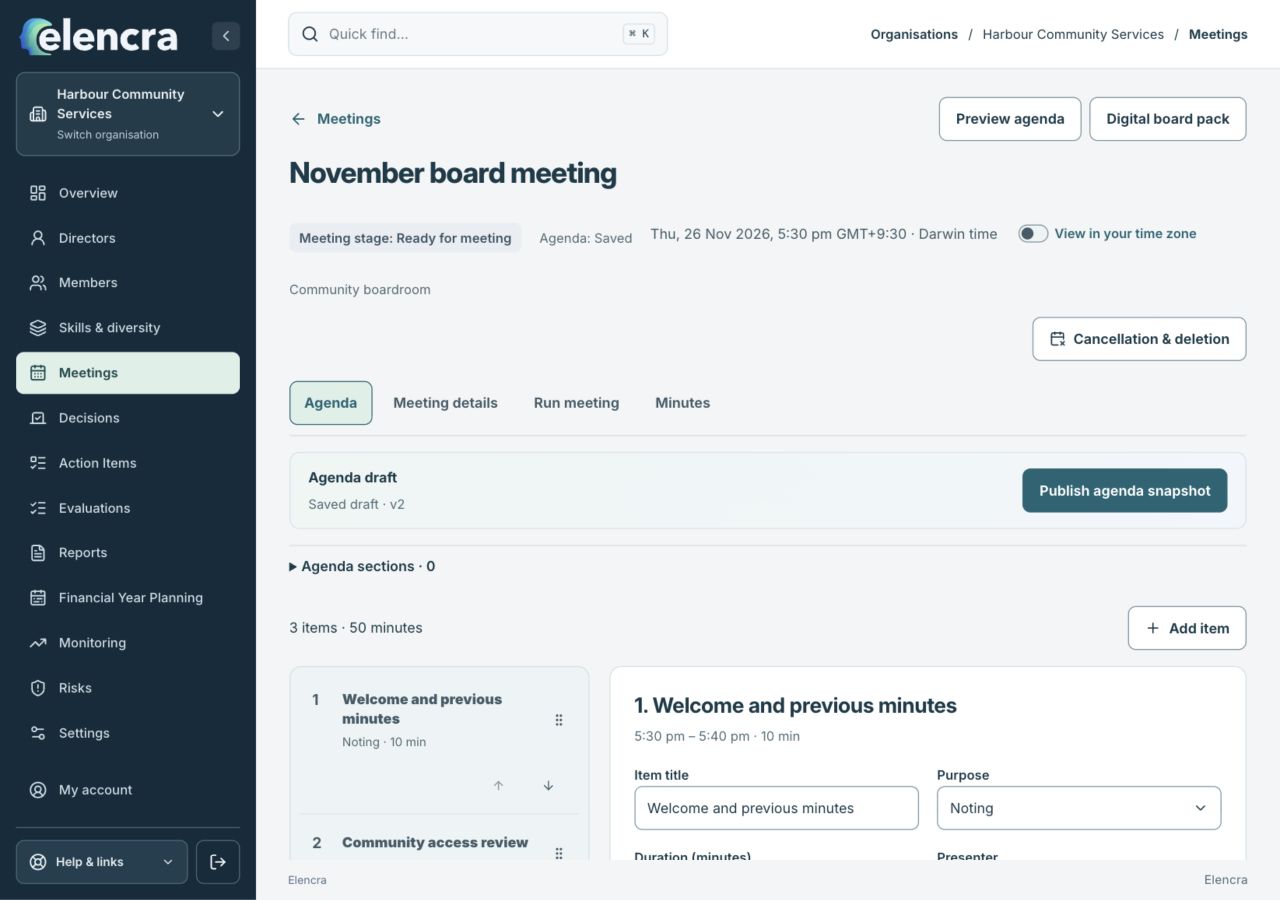
Agenda editing, preview and publication are separate controls.
Actual app interface with fictional records. Your permissions and screen size may change the options shown.
Add useful context
Record a Presenter, Duration and the briefing or agenda content needed for a productive conversation. Put the item in the right Agenda section.
- Give the presenter enough time for the item. Put the explanation in Background and the proposed outcome in Recommendation where those controls are available.
Save and preview
Confirm the agenda changes are saved, then choose Preview agenda. Review the order, item wording, schedule and total time.
- Use the saved-state indicator to confirm the draft is saved. Read the preview as a participant would, including the order, wording and total allocated time.
Publish intentionally
Choose Publish agenda snapshot, review the confirmation and choose Confirm publication. A saved edit and a published snapshot are different; publication does not send emails.
- Review the version you are about to release. If you edit the draft afterwards, check whether another publication is needed so participants see the intended version.
For example
Use “Approve the community program budget” as a Decision item, with the paper attached to that item. “Community program update” may be a Discussion item if no decision is being sought.
What you should see
Participants can read the published agenda version. Later draft changes do not silently rewrite the circulated snapshot.
- Every item has an appropriate purpose and sensible duration.
- The published snapshot matches the agenda you intended to release.
If something looks different
If you see changes awaiting publication, save and publish the revised agenda after review. Use the published versions to distinguish what was circulated from what is still being prepared.
A common question
Why are my latest edits missing from a published agenda?
Saving the draft and publishing a snapshot are separate. Check the saved state, preview the revised agenda, then deliberately publish the updated version when it is ready.
Did this help you move forward?
Your response stays in this browser on this device.
Updated 16 November 2026. Your organisation’s permissions and settings can change the options you see.