
Update an action and record completion
Give the board a useful progress update, then record the evidence when the work is complete.
- Action Items
- Open
- Update action
Before you start
Open the correct organisation. You must have permission to update the selected action.
- Have a short factual progress update and any relevant evidence ready.
- Check whether you are reporting progress, changing the task, or completing it.
Step by step
Find the action
Open Action Items. Use search or the Owner, Status and due-date filters to narrow the register. My actions only requires a linked director record.
- Search a distinctive word from the title. If the action is missing, clear filters and check the organisation before assuming it was deleted.
Find and open the actionExample workspaceEnlarge screenshot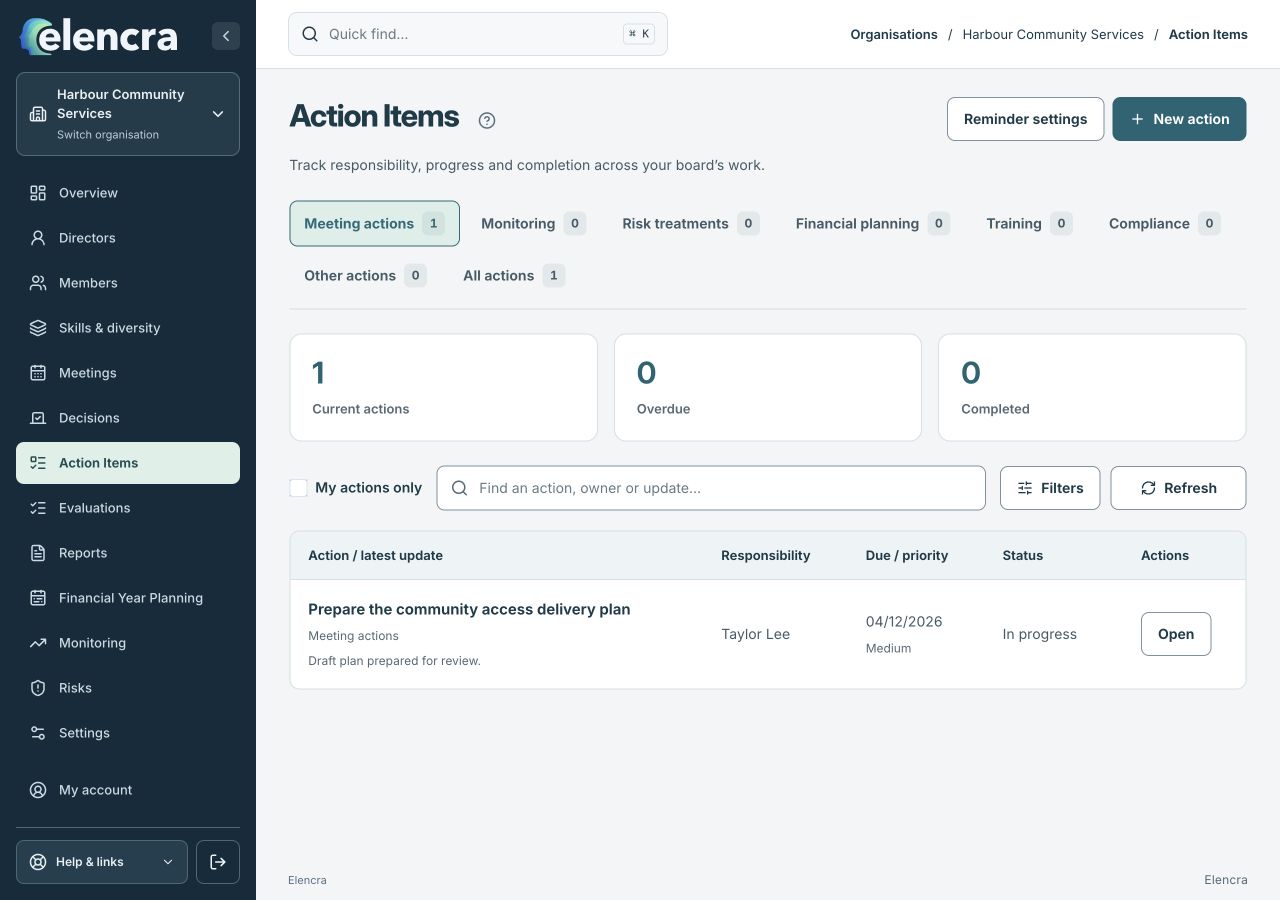
Use search and filters to locate the intended task, then choose Open.
Actual app interface with fictional records. Your permissions and screen size may change the options shown.
Open its detail
Choose Open to review the accountable owner, deadline, source and latest update before changing anything.
- Read the original instructions and source connection. Make sure the task you are updating is the one assigned to you, especially if titles are similar.
Record progress
Choose Update action. Set the appropriate Status and explain what changed in the progress update.
- Explain the result since the previous update and the next step. If work is blocked, say what is needed rather than only changing the status.
Record the next progress updateExample workspaceEnlarge screenshot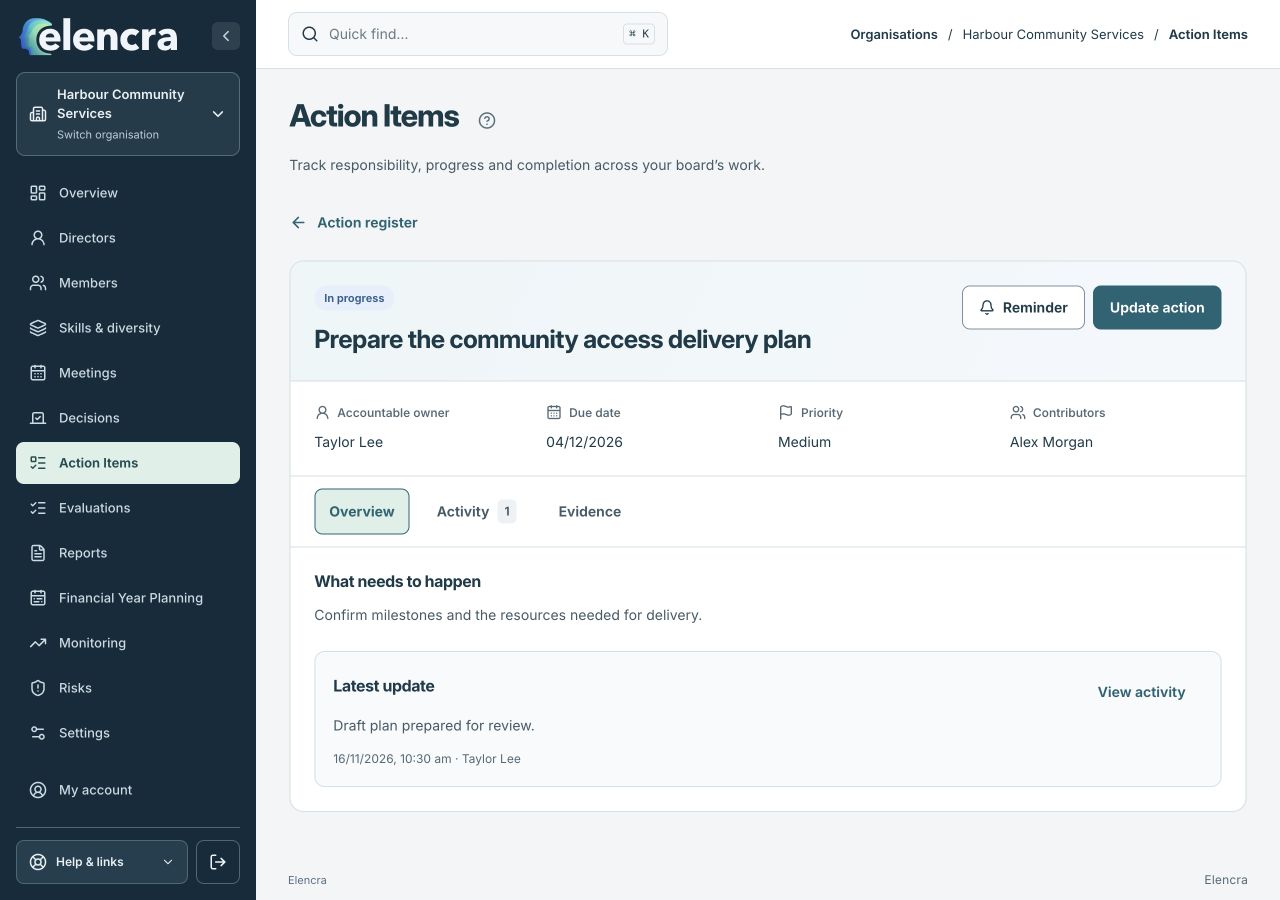
Read the existing detail before choosing Update action.
Actual app interface with fictional records. Your permissions and screen size may change the options shown.
Add completion evidence
When completing the action, record the outcome and supporting evidence rather than only changing the status.
- Check the evidence link can be opened by its intended readers. Do not mark Complete while the agreed result is still awaiting approval or delivery.
Save and verify
Use Save action where shown and check the latest update or activity history. If available, review whether the update should be included in the next published pack.
- Wait for the save result, then read the latest update. A saved update is separate from its deliberate inclusion in a future board pack.
For example
Write “Draft plan reviewed by the program lead; final costing due Friday” rather than “In progress”. On completion, link the approved plan or record its reference.
What you should see
The action shows a current, understandable update with its completion evidence where relevant.
- The latest status and update describe the same state of work.
- Any completion claim is supported by an outcome or evidence.
If something looks different
If My actions only is empty, ask an Administrator to check your director-account link. If an update fails to save, retain the wording and resolve the error before leaving.
A common question
What should a useful progress update say?
Say what changed, what remains and any decision or help needed. For example: “Draft costed; program lead reviewing by Friday. Waiting for the supplier quote before final approval.”
Did this help you move forward?
Your response stays in this browser on this device.
Updated 16 November 2026. Your organisation’s permissions and settings can change the options you see.