
Plan a financial-year reporting cycle
Bring reporting stages, deadlines, tasks and supporting links into one cycle.
- Financial Year Planning
- New year
Before you start
Have the reporting period and known responsibilities ready. Leave unknown completion and assurance facts unrecorded until they are known.
- Confirm the start and end dates for the reporting cycle.
- Have known preparation, assurance and board-approval deadlines ready.
Step by step
Create the cycle
Open Financial Year Planning and choose New year or Start a reporting cycle. Check Cycle details and the reporting period.
- Use New year only for a genuinely new cycle. To continue existing work, select it in Reporting cycle and check Cycle details.
Choose the cycle and stageExample workspaceEnlarge screenshot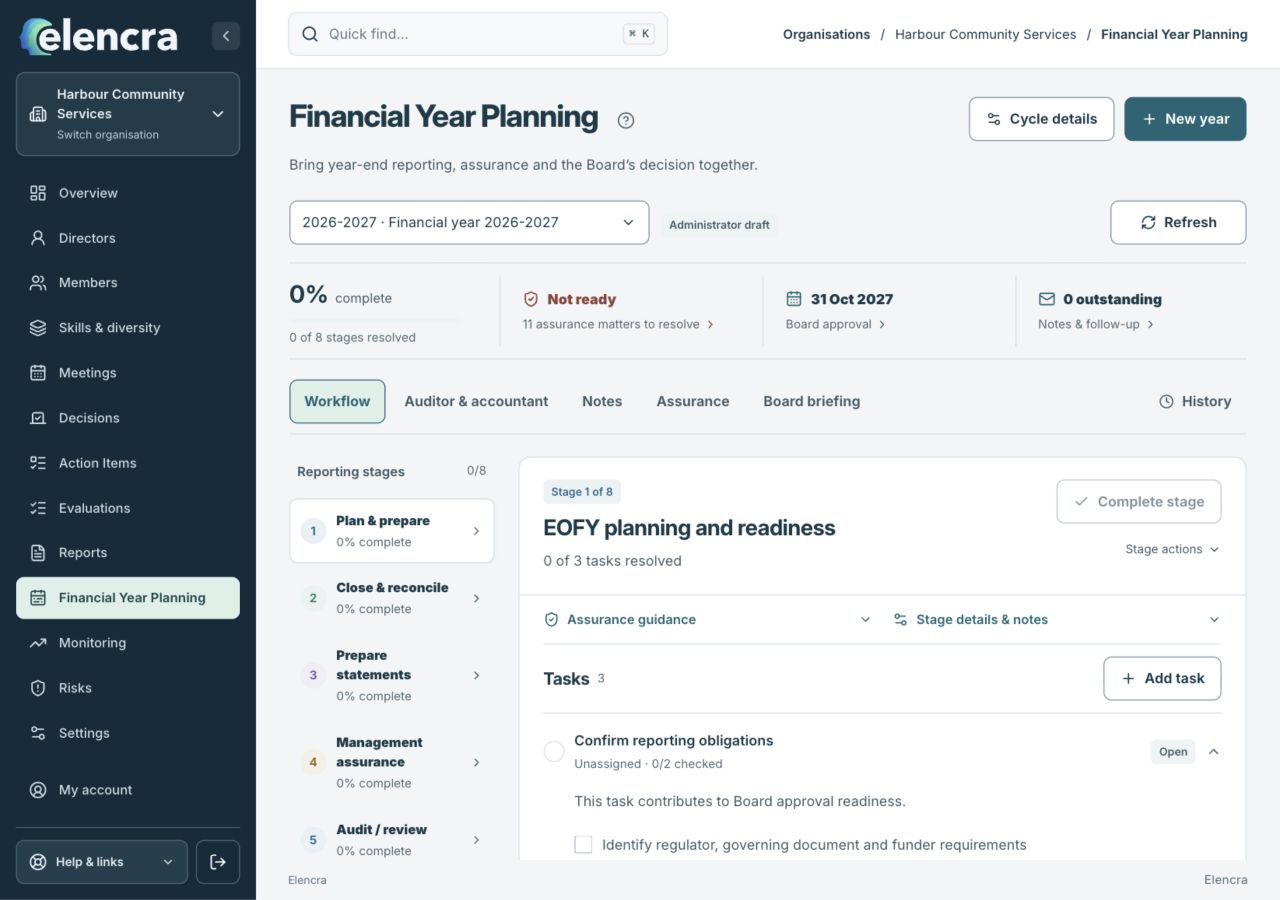
Check the reporting cycle before editing. Cycle details and Assurance address different parts of the year-end work.
Actual app interface with fictional records. Your permissions and screen size may change the options shown.
Set dates and responsibilities
Record known deadlines in the cycle and reporting stages. Use Upcoming deadlines & outstanding actions to review what remains.
- Set deadlines that reflect the agreed timetable. Check the outstanding-actions summary for missed or unassigned work rather than treating a target date as evidence of completion.
Add the work
Open a stage and use Add task for the practical steps. Keep stage notes and correspondence in their relevant areas.
- Choose a stage in the eight-stage workflow and use Add task where more detail is needed. Assign practical work and describe the evidence needed to resolve it.
Add supporting information
Use Financial statements & supporting links for the relevant documents. Add auditor or accountant contacts without assuming they need platform accounts.
- Keep contacts and correspondence in the relevant areas. A contact in Auditor & accountant is not automatically an invited application user.
Save and review progress
Use Save changes for the cycle. Complete a stage only when its work and evidence support that status. Comments have a separate Record comment action.
- Wait for the cycle save confirmation. Check task completion, assurance and the board decision separately; resolving a checklist does not itself constitute board approval.
For example
Create a year-end cycle with a draft-statements deadline, an auditor contact and a board-review stage. Sending an information request is not the same as receiving assurance.
What you should see
The saved cycle provides a practical view of deadlines, responsibilities and reporting progress.
- The correct reporting cycle and dates are selected.
- Progress, assurance and approval reflect the work actually completed.
If something looks different
Check whether you are viewing a historical cycle before editing. Reopening or archiving a cycle is a deliberate action; do not start a duplicate year to bypass its status.
A common question
Why is a stage not ready to complete?
Read the outstanding task or assurance requirements shown for that stage. Complete the underlying work and evidence, or follow an authorised reasoned exception where appropriate. Do not mark unknown facts as complete to remove the warning.
Did this help you move forward?
Your response stays in this browser on this device.
Updated 16 November 2026. Your organisation’s permissions and settings can change the options you see.