
Review an uploaded governance document
Check the file and its purpose before adding a reviewed PDF to a register.
- Relevant record
- Upload a document
Before you start
Use a PDF up to 5 MB, with permission to store it in the selected organisation. Do not include unrelated personal information.
- Open and check the original file on your own device.
- Confirm it is a PDF within 5 MB and belongs in this organisation’s record.
Step by step
Open the record needing evidence
Start from the relevant governance record, then choose Upload a document where supported.
- Start from the clearance or governance record that needs the evidence. This keeps the document connected to the fact it is meant to support.
Select the file
Choose PDF. Wait for transfer and verification to finish; selecting a file alone does not attach a reviewed document.
- Choose PDF opens your device’s file picker. Select the intended file, then wait for the upload result before moving to the review step.
Choose the evidence PDFExample workspaceEnlarge screenshot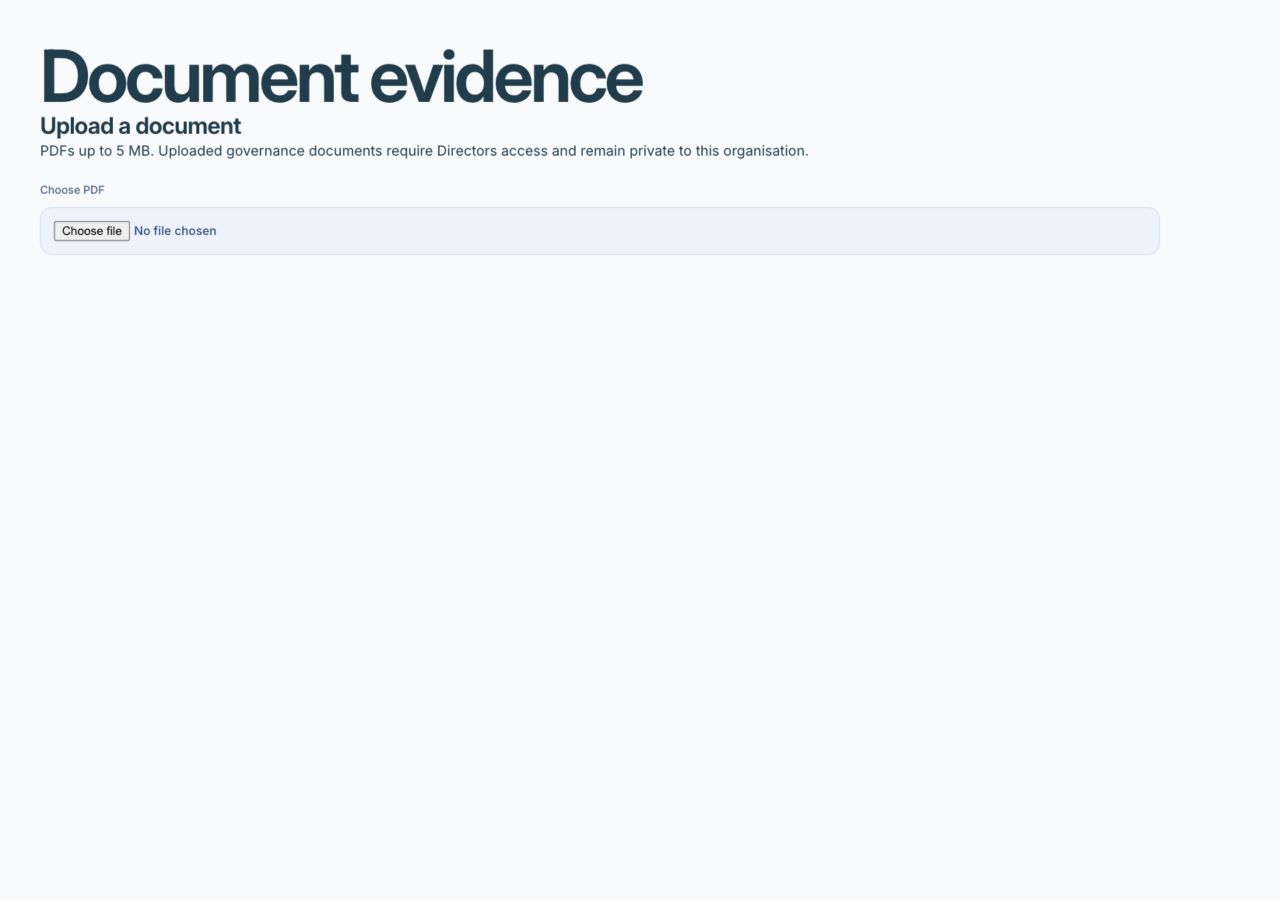
This is a detail view of the document-upload control. The next review steps appear after a successful transfer.
Actual app interface with fictional records. Your permissions and screen size may change the options shown.
Review the PDF
Choose Review uploaded PDF and check the actual contents, person, dates and relevance.
- Open Review uploaded PDF and inspect the document itself. Check its person, issuer, dates, completeness and relevance rather than trusting the filename.
Confirm your review
Only select the review acknowledgement after inspecting the document. Complete Add reviewed document to register when it is suitable.
- Acknowledge review only after inspection. If the PDF is wrong, do not release it just to finish the form; return to the supported correction path.
Check the connected record
Confirm the register now links to the intended reviewed document. Review the record’s status separately; a file does not automatically verify all its claims.
- Check the linked file in the register. Record the compliance or governance assessment separately; uploading evidence does not automatically establish every claim made in it.
For example
For a director clearance record, check the uploaded evidence belongs to that director and supports the dates being recorded before adding it to the register.
What you should see
The relevant record points to the reviewed PDF within the organisation’s controlled storage.
- The record links to the correct inspected PDF.
- Any verification status is supported by the actual review.
If something looks different
Upload verification checks transfer and integrity; it is not a guarantee that a file is harmless. Use your organisation’s document-review procedures and stop if the file is unexpected or suspicious.
A common question
Is document review the same as a security guarantee?
No. The review controls ask an authorised person to inspect suitability and content. Do not describe a successful upload or human review as a guarantee that a file is free from every security risk.
Did this help you move forward?
Your response stays in this browser on this device.
Updated 16 November 2026. Your organisation’s permissions and settings can change the options you see.