
Create a monitoring record and record an update
Connect a priority to its owner, dates and evidence of progress.
- Monitoring
- New record
Before you start
Decide what you are monitoring and check whether the record already exists. A monitoring area groups work; it is not the record itself.
- Choose the outcome, activity or measure you need to follow.
- Search existing areas and records so the same work is not entered twice.
Step by step
Choose where the record belongs
Open Monitoring. Use an existing Monitoring Area or View All Records. A record can also stand alone.
- An area groups related work. Use View All Records to find an existing record even when it is not in the area you first expected.
Create the record
Choose New record or Add Monitoring Record. Select a suitable record type and enter its title and core details.
- Choose Add Monitoring Record and the type that fits the information. Give it a title that explains the work rather than a broad label such as “Update”.
Create a record or find existing workExample workspaceEnlarge screenshot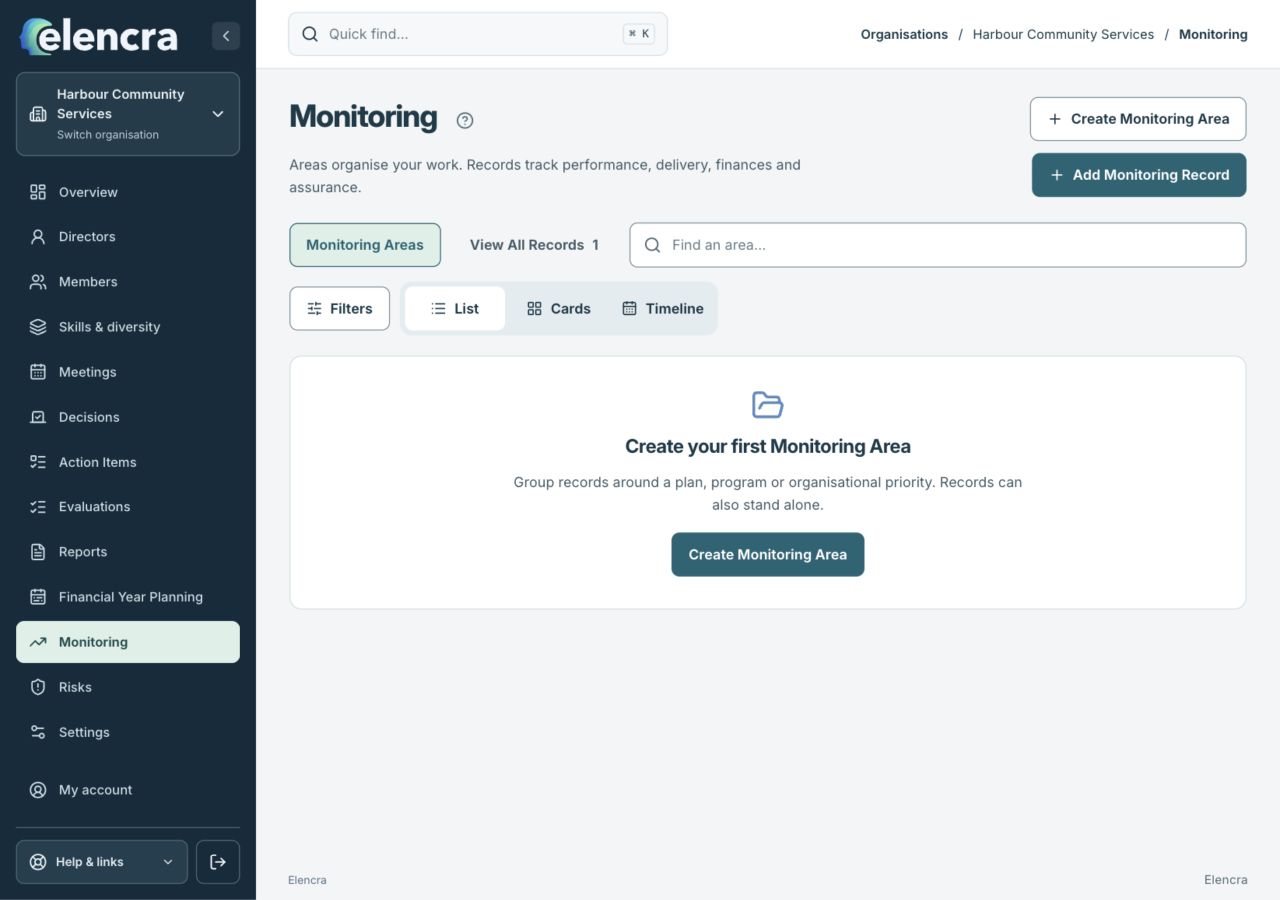
Add Monitoring Record starts a record. View All Records helps you find work that already exists.
Actual app interface with fictional records. Your permissions and screen size may change the options shown.
Add useful measures
Complete the relevant dates, owner, measurement or delivery fields. Only enter an actual or target when you have a meaningful basis.
- Check the unit and period for any measure. For example, a count of completed access improvements should not be entered as a percentage unless that is the agreed measure.
Connect supporting context
Add document links and related risks where appropriate. Avoid copying the same work into several separate records.
- Link relevant evidence and risks instead of copying their full content into several places. Check that linked documents are appropriate for the record’s authorised readers.
Save and return for updates
Save the details. Use Record update to record progress over time rather than replacing the record’s purpose with a running commentary.
- Use Record update for dated progress. Keep the underlying purpose, owner and target clear so later readers can understand what each update is measuring.
For example
For a service-access priority, record the intended outcome, accountable person and review date. Later updates can explain progress and link to evidence.
What you should see
The priority can be followed from its core details through its recorded updates and related risks.
- The record has a meaningful owner, measure or delivery purpose.
- The latest update gives enough evidence to explain the status.
If something looks different
An empty area may reflect a filter. Check Standalone records only, status and date filters before recreating an existing record.
A common question
Do I need a new record every month?
Usually, use updates on the existing record when you are following the same work over time. Create another record when there is a distinct purpose, outcome or responsibility that needs its own history.
Did this help you move forward?
Your response stays in this browser on this device.
Updated 16 November 2026. Your organisation’s permissions and settings can change the options you see.