
Add a member to the membership register
Keep constitutional membership facts separate from director appointments and application access.
- Members
- Add member
Before you start
Check the membership classes and required fields configured by the organisation. Confirm the person is not already recorded.
- Check the organisation’s membership classes and required information.
- Search for the person or organisation, including pending and former records.
Step by step
Search the register
Open Members. Check current, former and pending records before adding a new one.
- Use Find a member and the relevant status filters. Clear the filters if a known record is not visible before starting another application.
Start the record
Choose Add member and the appropriate individual or organisational member type.
- Choose Add member and follow the guided record steps. Select the right member type; an organisation and its representative are not the same identity.
Find the member before adding anotherExample workspaceEnlarge screenshot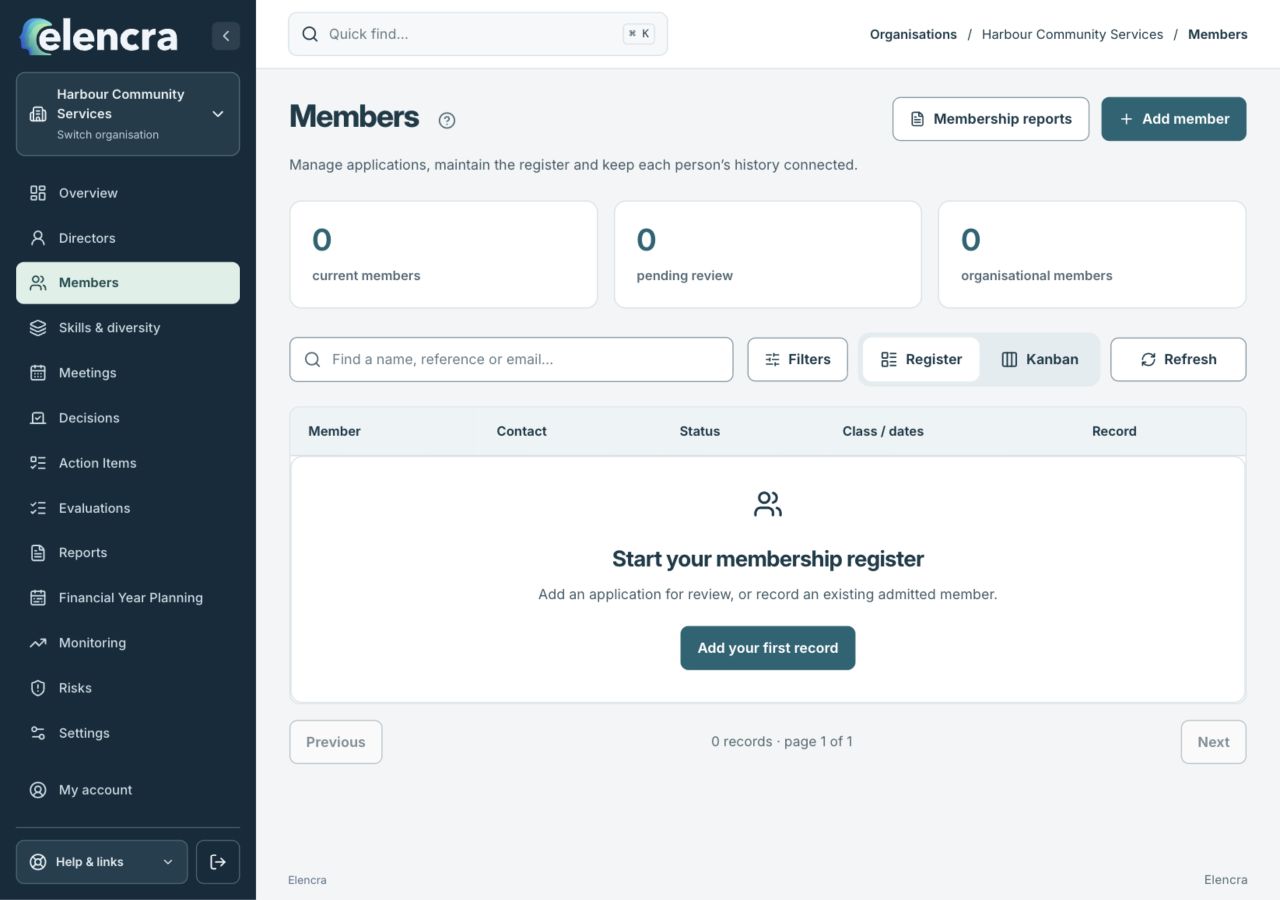
Search and filters help check for an existing record. Add member starts the guided record steps.
Actual app interface with fictional records. Your permissions and screen size may change the options shown.
Record known facts
Complete the required identity, contact and membership-class information. Keep application, approval, admission and register-entry dates distinct.
- Use the dates supported by the actual application or admission decision. Do not replace an unknown approval date with the day you entered the record.
Review the history and privacy
For organisational members, review representative details separately. Only record sensitive information through the authorised fields and stated collection purpose.
- Check the relationship and period being recorded. Private notes and evidence should be necessary for the authorised membership purpose, not a general collection of personal information.
Review and confirm
Check the proposed record and complete its confirmation. Reopen it to confirm the right membership period and status.
- Read the review summary before confirming. Reopen the resulting record to check the status, class and dates; entering an application is different from approving admission.
For example
A director may also be a member, but appointing a director does not establish constitutional membership. Link or create the member record deliberately where appropriate.
What you should see
The membership register contains the recorded facts and history. It does not create an application login or determine legal eligibility by itself.
- The record is in the intended membership class and status.
- Application, approval and register-entry facts have not been confused.
If something looks different
A shared family email address does not mean two members are the same person. Review possible duplicates without automatically merging their records.
A common question
Is every director automatically a member?
No. A director appointment and constitutional membership are different relationships. Record or link membership deliberately using the organisation’s rules and evidence of the relevant admission or period.
Did this help you move forward?
Your response stays in this browser on this device.
Updated 16 November 2026. Your organisation’s permissions and settings can change the options you see.