
Choose the right audience for a report
Check who can see the information before saving, sharing or downloading it.
- Reports
- Report setup
- Audience
Before you start
Know whether the output includes named people, private reflections or restricted governance information.
- List the people who actually need this output.
- Identify any named director information, individual reflections or restricted records in its sources.
Step by step
Review the sources
Check each selected report layer. Aggregate capability information and named director information have different privacy needs.
- Review the contents of every layer, including tables and comments. A report described as a “summary” can still contain personal or named details.
Set the audience
Use the Audience options offered for the report. Review Owner and administrators versus Organisation report viewers where shown.
- Choose the most appropriate available audience. If a wider option is not offered, review the source restrictions rather than trying to work around them.
Choose an appropriate audienceExample workspaceEnlarge screenshot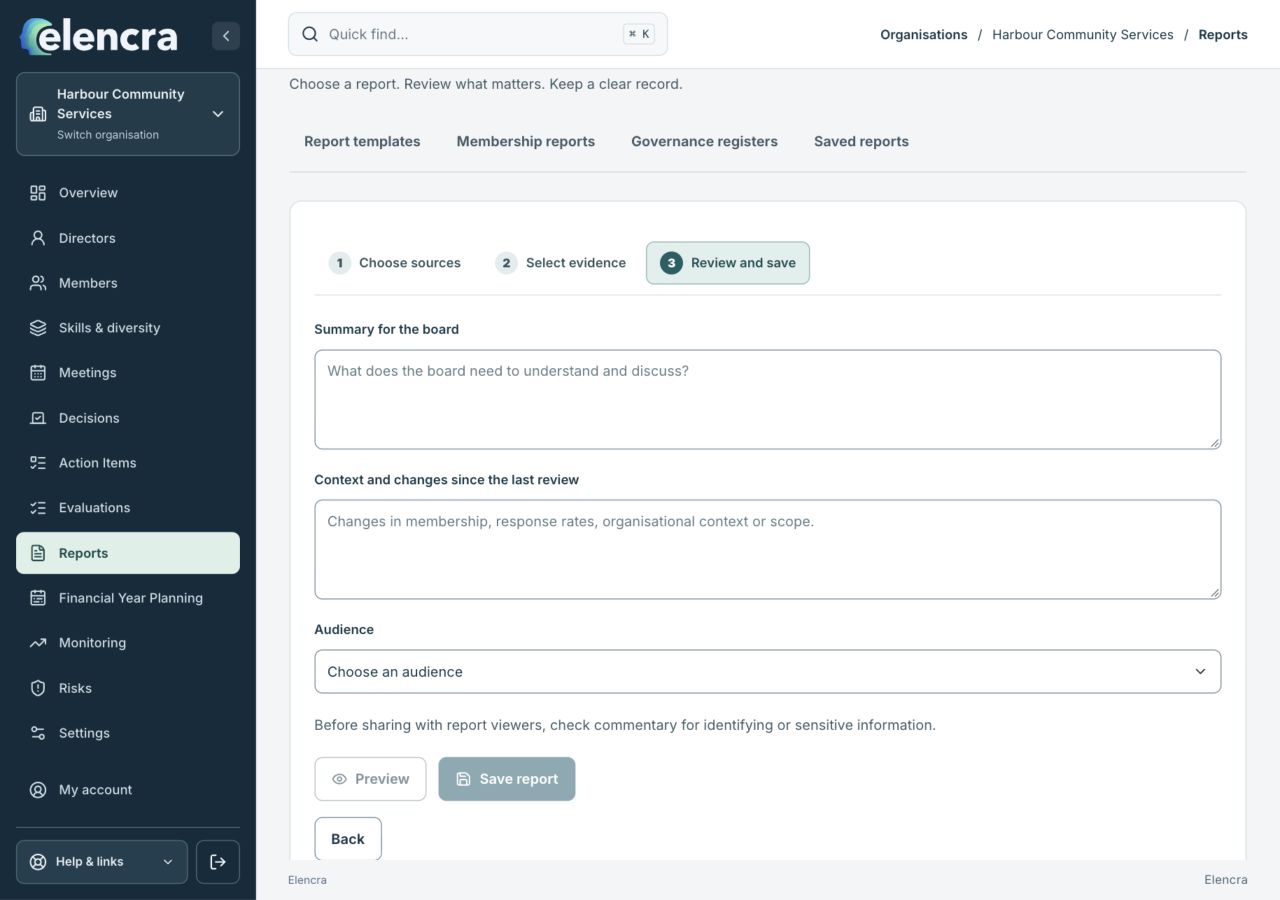
Review the audience alongside the report commentary, then preview the contents before saving. The final save is a separate action.
Actual app interface with fictional records. Your permissions and screen size may change the options shown.
Inspect the preview
Read the actual preview rather than relying on the report title. Remove material that is unnecessary for that audience.
- Read the complete preview with the intended reader in mind. Remove unnecessary personal details and check that withheld survey information remains withheld.
Save deliberately
Choose Save report when ready, then reopen the saved output to confirm its recorded audience and scope.
- Reopen the saved report to verify its scope and audience. A selection in an unfinished builder is not evidence that the final output was saved that way.
Share through the authorised route
Only use an available sharing method appropriate to the recipient. Downloaded files can be copied outside Elencra, so check them before forwarding.
- Check any downloaded output before forwarding it. A file copied outside Elencra does not continue to rely on the workspace’s access checks.
For example
An aggregate skills-gap summary may suit a board discussion. A named matrix or private self-reflection may need a more restricted audience even when included in the same reporting exercise.
What you should see
The saved report’s content and audience match the intended use.
- Every included layer is suitable for the recorded audience.
- Any file shared outside the workspace has been checked separately.
If something looks different
Being able to view a source does not mean it should be distributed broadly. If the audience is unclear, ask the organisation’s Administrator before sharing.
A common question
Can I widen the audience to make restricted detail visible?
Do not use audience settings to work around a source restriction. Choose an authorised reporting path and include only information the intended readers are permitted to see.
Did this help you move forward?
Your response stays in this browser on this device.
Updated 16 November 2026. Your organisation’s permissions and settings can change the options you see.