
Give someone access to your organisation
Invite a person with the role and sections they need, without changing access to other organisations.
- Settings
- Users
- Invite user
Before you start
Check whether the person already has a director profile or existing account. Use the correct email address and an explicit person-to-record link.
- Have the person’s intended email address and the access they actually need.
- Check for an existing director profile or current organisation account first.
Step by step
Choose the right starting point
For a director, open their saved profile and its Platform access controls. For another user, open Settings, then Users. On mobile, use the Settings section selector to choose Users.
- Use the director’s Platform access section for a director-linked account. Settings → Users provides the organisation user register and Invite user for other authorised users.
Open the organisation’s user registerExample workspaceEnlarge screenshot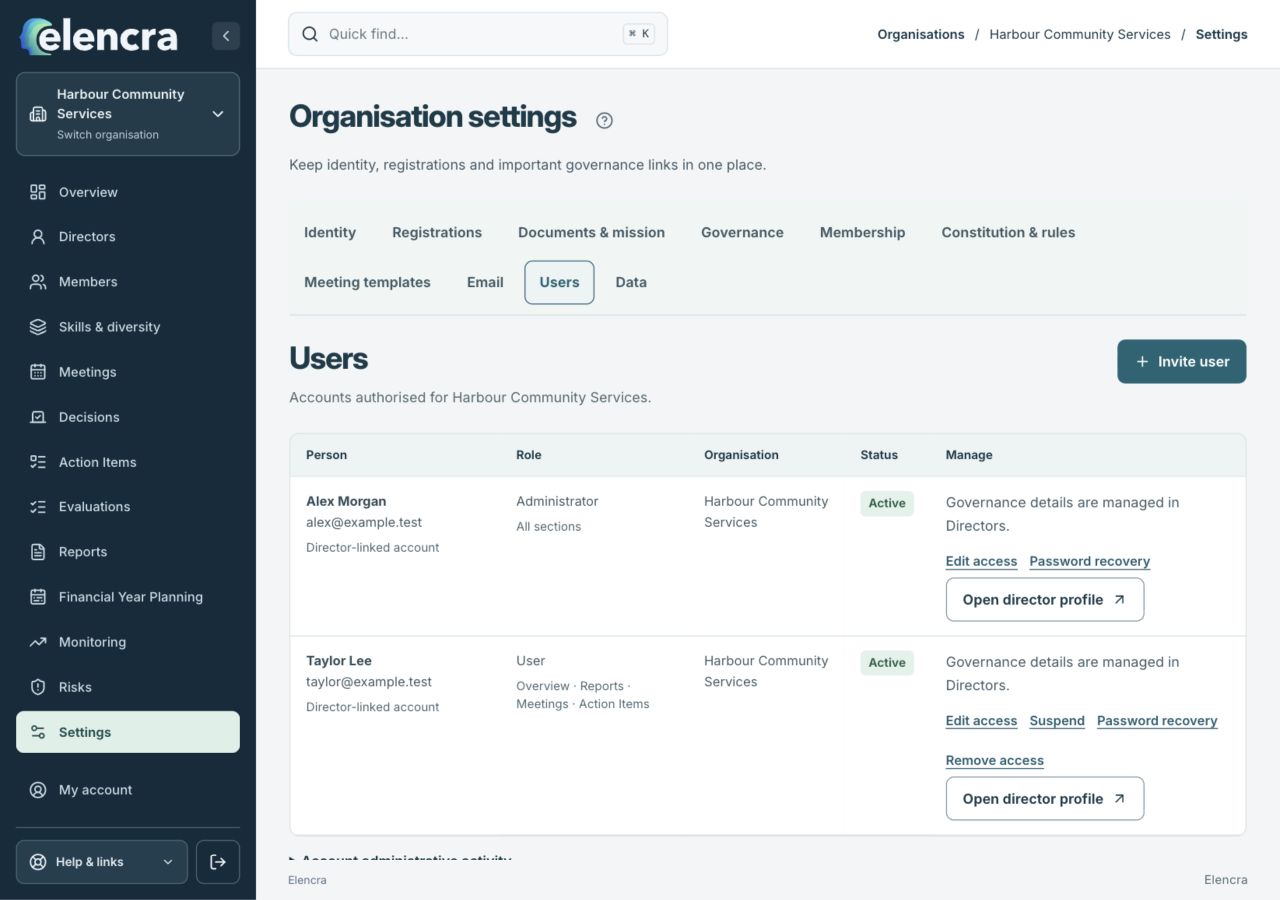
Settings → Users contains Invite user. For director-linked access, use the saved director profile.
Actual app interface with fictional records. Your permissions and screen size may change the options shown.
Review the person
Choose Invite user or Enable platform access as appropriate. Check the full name and email rather than creating a duplicate profile.
- Check Full name and Email address together. Do not link someone to a director profile merely because the names match.
Choose the role
Select User or Administrator. Administrators can access all sections, including Users and Settings; only grant that role when needed.
- Choose User for limited section access. Only choose Administrator when the person needs the broad management powers that role carries.
Check identity and roleExample workspaceEnlarge screenshot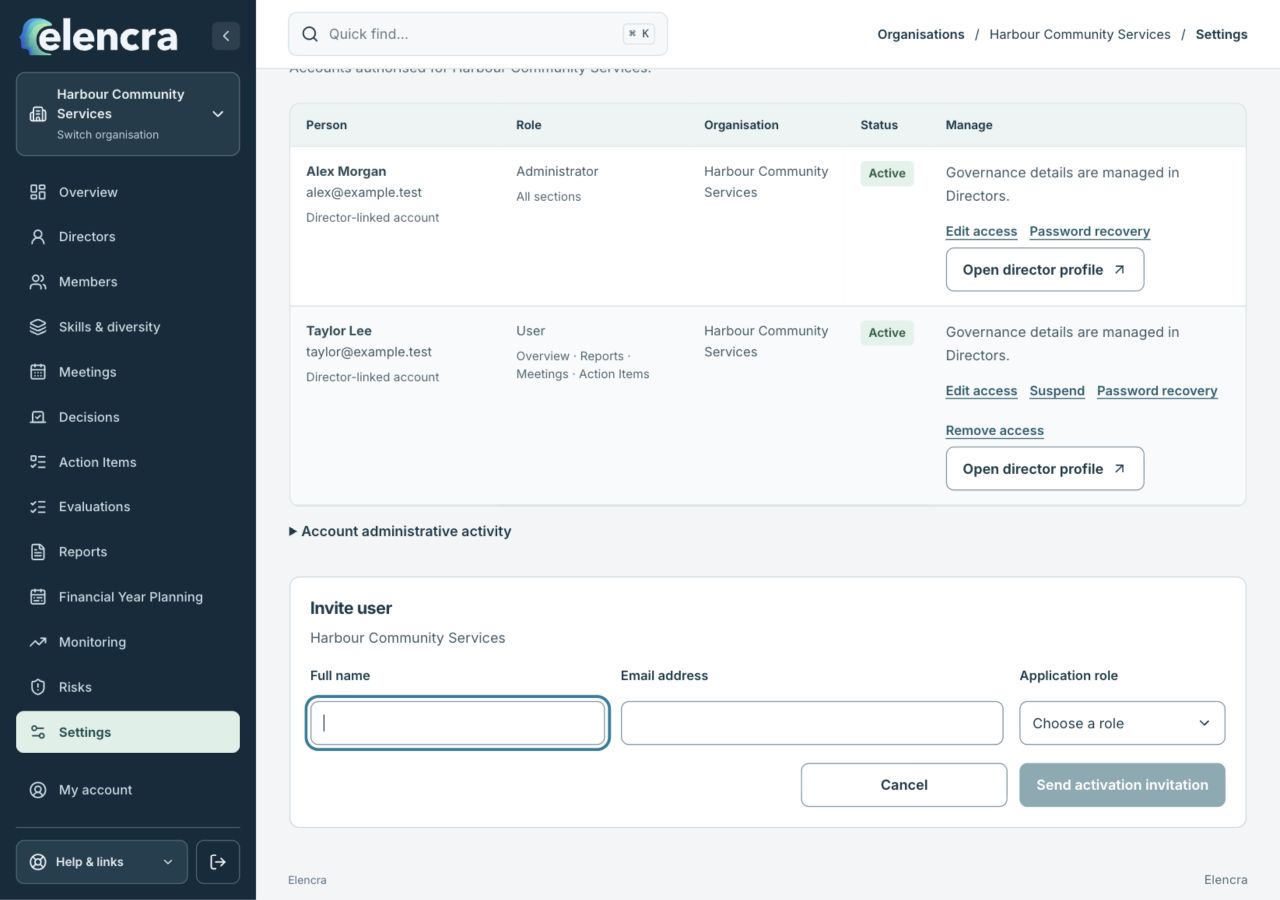
This is the non-director invitation form. Select the required access before using the separate activation invitation action.
Actual app interface with fictional records. Your permissions and screen size may change the options shown.
Choose section access
For a User, select the Platform sections needed for their work and review the invitation expiry.
- For a User, select only the sections needed. A section permission does not remove any more specific restrictions on a private paper or report.
Review and invite
Confirm the invitation through the displayed review step. Check the resulting state; a sent invitation is not proof that the person has activated access.
- Use Send activation invitation when the details are ready and follow any review confirmation. Check whether the result is invited, active or failed; these describe different stages.
For example
Give a person Reports access if they only need authorised board reports. Do not grant Administrator solely to make a missing menu item appear.
What you should see
The invitation or membership applies to the selected organisation. The same account can have different access elsewhere.
- The invitation is for the right person and organisation.
- The role and selected sections match the intended work.
If something looks different
Director-linked accounts are managed through their director profile. Removing one organisation’s access must not be treated as deleting the person’s global account.
A common question
Does removing access here remove the person from other boards?
Organisation access is separate from the global account and other memberships. Review only this organisation’s access when that is the task; account-wide deletion is a different operation.
Did this help you move forward?
Your response stays in this browser on this device.
Updated 16 November 2026. Your organisation’s permissions and settings can change the options you see.