
Review a director’s compliance and training records
Record known facts and evidence without confusing an outstanding task with a completed check.
- Directors
- Open profile
- Compliance / Training
Before you start
Have the evidence or course information available. Some organisation-standard requirements are managed through Settings.
- Check the director and the requirement the evidence is meant to satisfy.
- Have the issuer, relevant dates and verification facts available where known.
Step by step
Open the right register
Choose Compliance or Training in the director’s profile. Check the person and the record before editing.
- Choose Compliance for clearance records or Training for learning tasks. The count beside a profile tab can change as records are added or reviewed.
Review a compliance record
Use Edit record where available. Check the type, review status, issuing authority and known issue or expiry dates.
- Use Add clearance for a new clearance, or Edit record for an existing one. Check the review status; requesting evidence is different from receiving or verifying it.
Add or review a clearanceExample workspaceEnlarge screenshot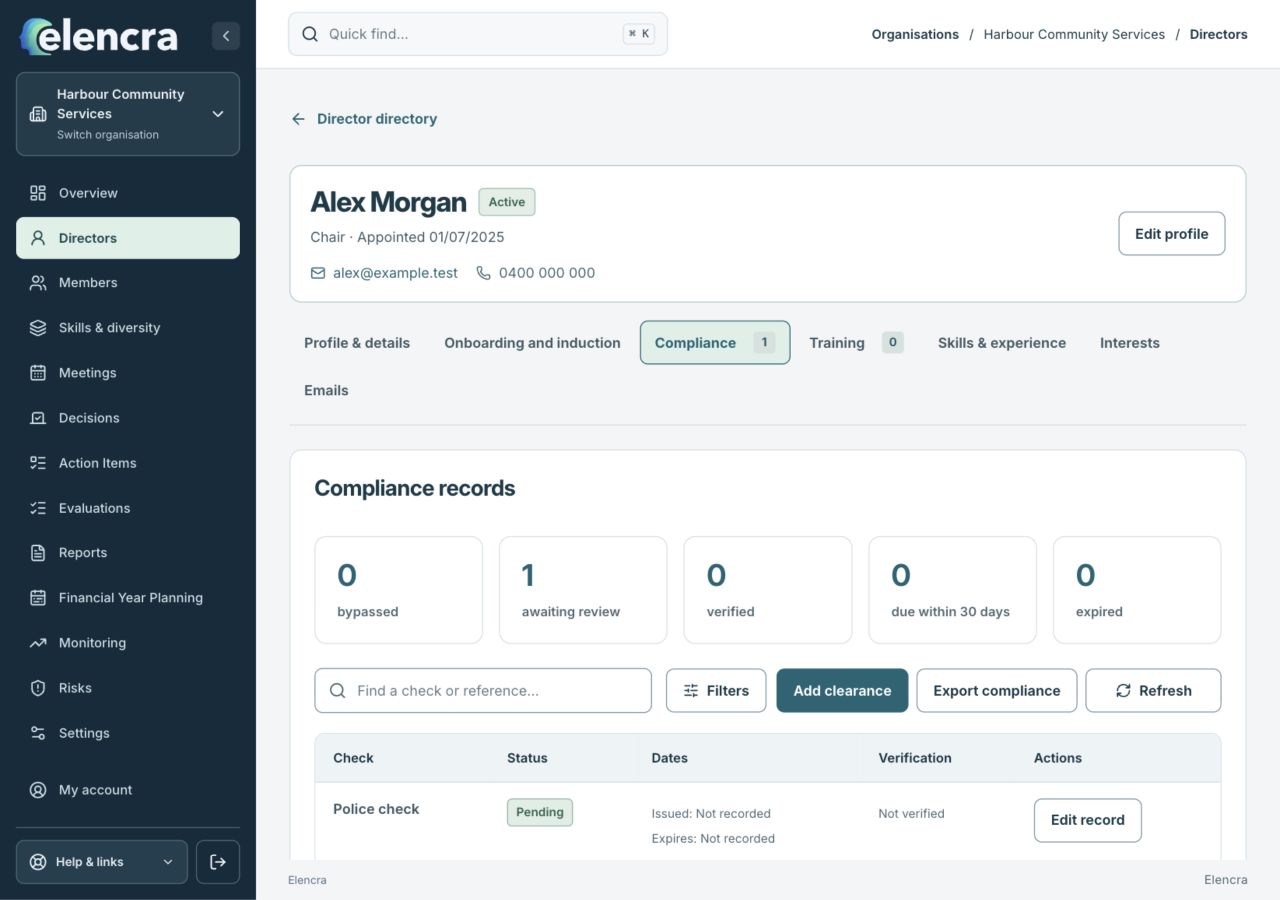
A requested check remains awaiting review until the required verification has actually taken place.
Actual app interface with fictional records. Your permissions and screen size may change the options shown.
Record verification accurately
Only enter Verified by and Verification date when verification has actually taken place. Add an authorised evidence link or document where supported.
- Read the evidence before entering verification details. Check that the document belongs to this director and supports the recorded type, authority and dates.
Complete training separately
For finished training, use Record completion and enter the completion date, hours and evidence or completion note as appropriate.
- For training, check the actual completion date and recorded hours. A course invitation or attendance plan does not prove that the course was completed.
Save and check the status
Use Save record or Save completion and review the result. A bypass or cancelled task is not completed training or verified compliance.
- Reopen the record and check the resulting status. If a requirement is bypassed, record the reason through the authorised path rather than calling it verified or complete.
For example
A police check has been requested but not received. Keep it outstanding; do not enter today as a verification date just to remove it from the list.
What you should see
The register distinguishes work still required, evidence received and verification or completion actually recorded.
- Dates and verification details are supported by evidence.
- The saved status describes what has actually been checked or completed.
If something looks different
Standard requirement titles and protected items may need changes in Organisation Settings. Ask an Administrator rather than deleting an item to make the summary look complete.
A common question
The evidence is still on its way. What should I record?
Keep the record in an appropriate outstanding or review state. You can record what has been requested, but leave verification details unconfirmed until the evidence has actually been checked.
Did this help you move forward?
Your response stays in this browser on this device.
Updated 16 November 2026. Your organisation’s permissions and settings can change the options you see.