
Review a director’s skills and experience
Record a capability rating with the evidence and review status behind it.
- Directors
- Open profile
- Skills & experience
Before you start
Check whose profile you are reviewing and whether you are authorised to change its ratings.
- Use the organisation’s capability descriptions and rating approach.
- Have relevant professional experience or evidence ready to support a rating.
Step by step
Open the skills view
In Directors, open the profile and select Skills & experience. Skills & diversity provides the broader board view where available.
- Skills & experience shows one director’s record. Skills & diversity is the broader board view; check which question you are trying to answer before choosing one.
Choose a capability
Find the relevant skill and choose Edit rating. Read the capability before selecting a level.
- Find the capability and choose its Edit rating button. For example, the first row offers Edit Governance & director duties rating.
Review an individual capabilityExample workspaceEnlarge screenshot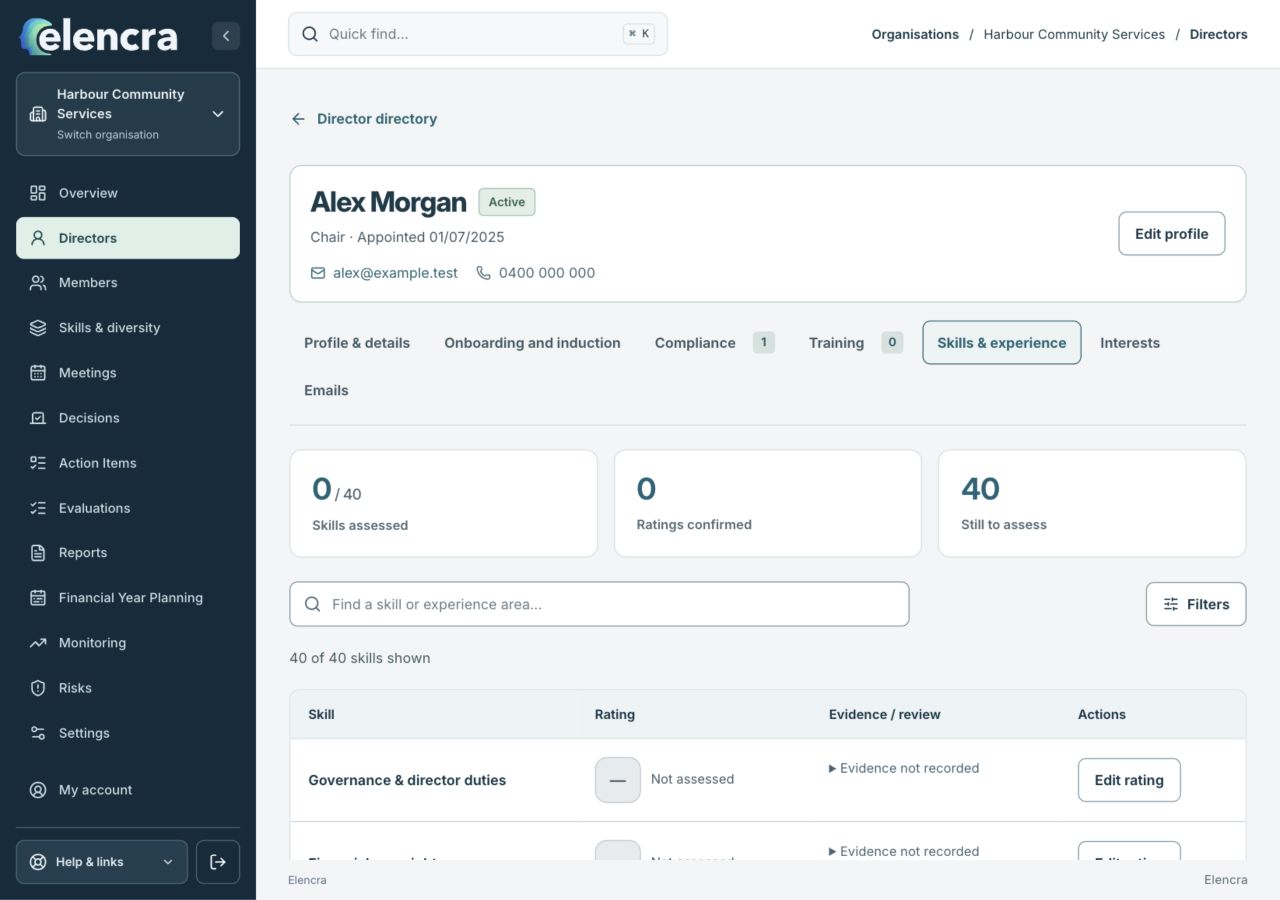
Each capability has its own edit control. The evidence should support the rating you choose.
Actual app interface with fictional records. Your permissions and screen size may change the options shown.
Add the evidence
Set Capability rating and record Supporting evidence that explains the assessment.
- Explain the rating with specific experience, qualifications or recent work. A job title alone may not explain the level selected.
Confirm review only when done
Use Rating and evidence reviewed only after the rating and its supporting material have been checked.
- Confirm review only after checking both the selected rating and its evidence. An unchecked or unassessed entry should not be presented as a reviewed weakness.
Save and consider the board picture
Save the rating, then use the authorised board-level view to consider coverage and gaps. Not assessed is different from a low rating.
- Check the saved individual rating, then consider what the combined board view means for learning or recruitment. Coverage and confidence in the evidence are separate considerations.
For example
A director’s finance qualification and recent audit-committee work can support a rating. A missing response should remain unassessed rather than being scored as no experience.
What you should see
The rating has a clear basis and an honest assessment status.
- The rating has a clear supporting explanation.
- Unassessed capabilities remain distinct from assessed low ratings.
If something looks different
If Edit rating is unavailable, your access may be read-only or limited to a particular director. Ask an Administrator to review the relevant permissions.
A common question
Should every blank capability be given the lowest rating?
No. A blank or unassessed entry means the assessment has not been recorded. Review the person’s evidence and the capability description before choosing a rating.
Did this help you move forward?
Your response stays in this browser on this device.
Updated 16 November 2026. Your organisation’s permissions and settings can change the options you see.