
A PDF will not upload or open
Use the error and document status to decide what to try next.
- Relevant paper or record
- Upload / Open
Before you start
Keep the original file on your device. Do not repeatedly upload the same paper while a transfer is still in progress.
- Keep the original document so it can be checked or exported again if needed.
- Note the page, file size and non-sensitive error message.
Step by step
Check the file
The upload must be a PDF up to 5 MB. Renaming another file to .pdf does not convert it. Use your approved PDF export tool to create a real PDF.
- Check the file’s actual format and size. If it exceeds 5 MB, use an approved local export or compression method, then reopen the resulting PDF to inspect it.
Check the file and upload workflowExample workspaceEnlarge screenshot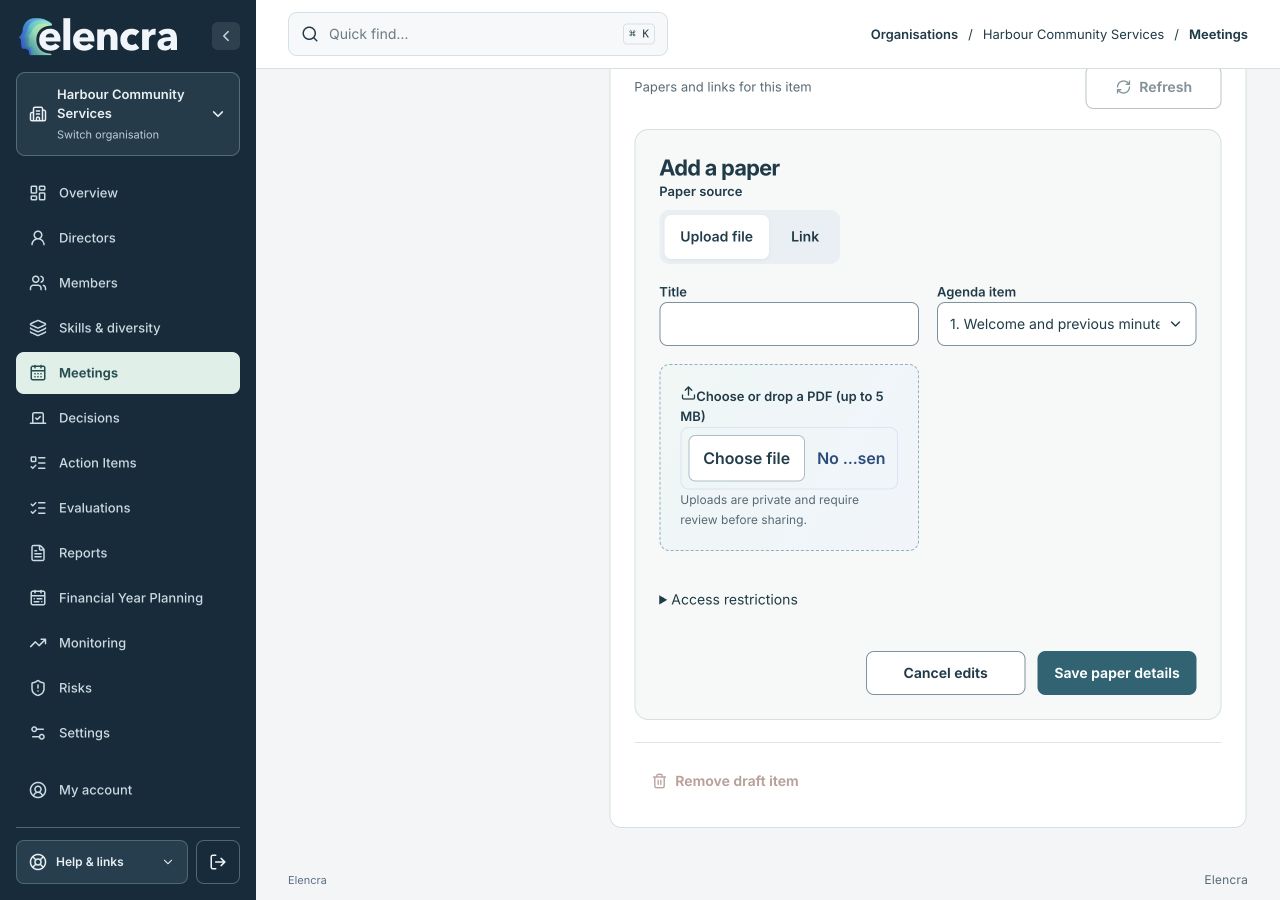
The paper form shows the upload option, file picker and access restrictions. Transfer, review and release are different checks.
Actual app interface with fictional records. Your permissions and screen size may change the options shown.
Read the status
If new uploads are paused, existing documents may remain readable. Ask an Administrator to review the service rather than bypassing the pause.
- Read the displayed service message before retrying. Repeated uploads will not resolve an organisation-level pause and can create uncertainty about which file finished.
Check transfer and review
Wait for the result. A verified upload can still need administrator review before it is available to other readers.
- Wait for transfer and verification to finish. For a quarantined or unreleased paper, ask the authorised reviewer to inspect and release the intended version.
Check reading permissions
For an unavailable paper, confirm the organisation, meeting, version and audience with the organiser. Access to a meeting does not guarantee access to every paper.
- Confirm the exact organisation, meeting and document version. A restricted paper can remain unavailable even when you can open the agenda and other papers.
Use the supported alternative
If pack processing fails on a device, try the offered alternate builder or read individual authorised papers. Contact support if the error continues.
- Use another offered reading method if only combined-pack processing fails. If the same problem persists, give support the page, time, size and safe error text rather than the confidential PDF.
For example
A 9 MB scanned paper needs to be reduced with an approved tool before upload. Do not put confidential board papers into a public online converter without approval.
What you should see
You have isolated a file-format, size, service, review or permission issue.
- The file is a readable PDF within the stated limit.
- You have distinguished transfer, review and reading-access problems.
If something looks different
Do not remove restrictions or create a public sharing link to get around a failed upload. Send support the safe error wording and file size, not the confidential paper itself.
A common question
Can I rename a Word document to end in .pdf?
No. A filename change does not convert its contents. Export it as a real PDF using an approved tool, then check the PDF before selecting it for upload.
Did this help you move forward?
Your response stays in this browser on this device.
Updated 16 November 2026. Your organisation’s permissions and settings can change the options you see.