
Add a paper to a meeting
Connect a PDF or source link to the agenda item it supports.
- Meetings
- Open meeting
- Agenda
- Papers & links
Before you start
Save the agenda item first. File uploads accept PDFs up to 5 MB and must be available for your organisation.
- Open the original PDF and check its contents before selecting it.
- Check the intended agenda item, permitted readers and whether the file is within 5 MB.
Step by step
Open the meeting’s papers
Open the meeting’s Agenda, select the relevant item and choose Papers & links, then Add paper or link.
- In Agenda, select the item in the outline, then choose Papers & links. Use Add paper or link to open the source controls.
Choose the source
Select Upload file for a PDF or Link for an external website, dashboard or document. Add a clear Title and the relevant Agenda item.
- Use a title readers can recognise without opening the file. For a link, use the specific resource address and check that its own permissions suit the audience.
Choose the source and review accessExample workspaceEnlarge screenshot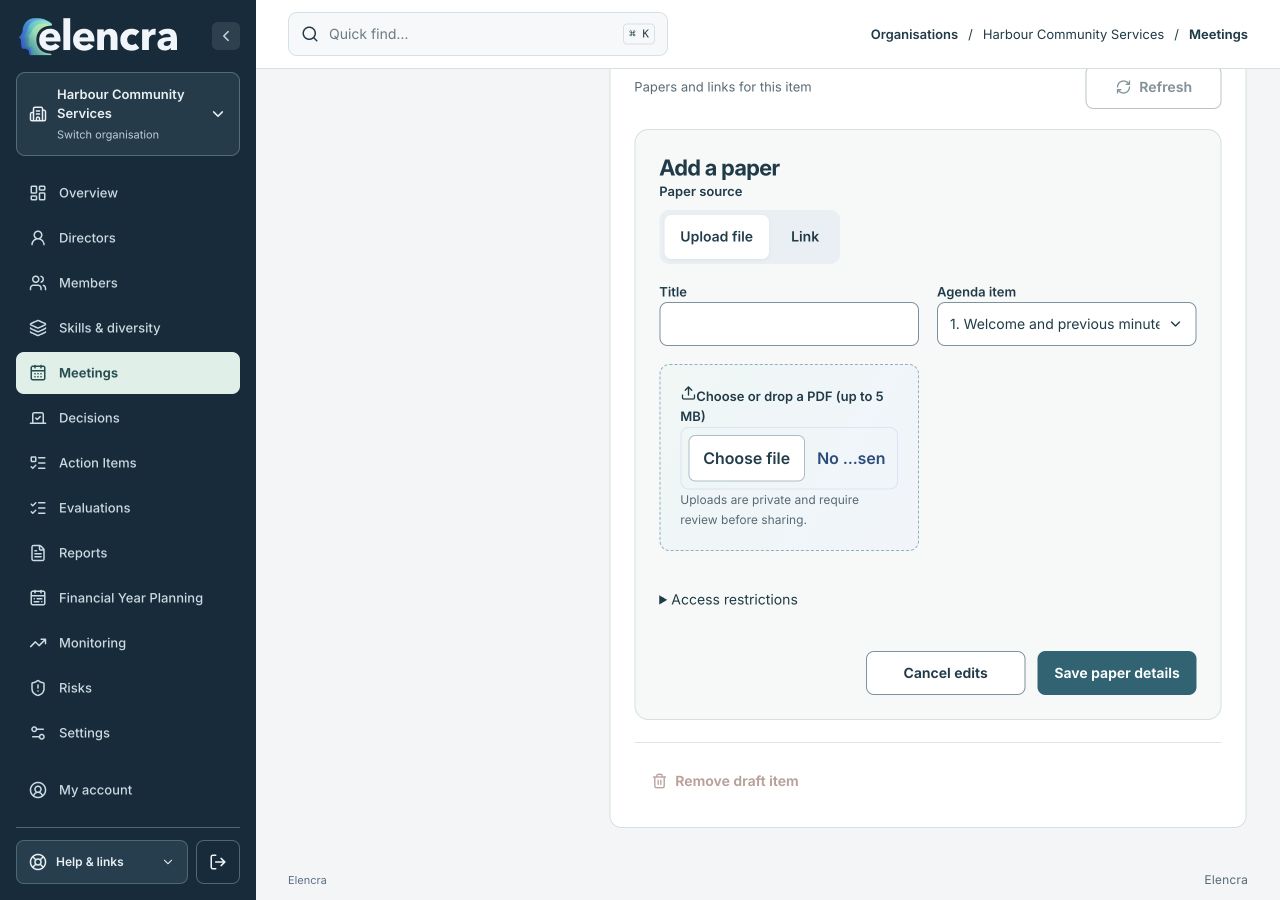
The file picker, restrictions and Save paper details controls are part of the paper form. Saving details is separate from review and release.
Actual app interface with fictional records. Your permissions and screen size may change the options shown.
Check access
Review Audience, Allow and Exclude where shown. A person’s meeting access does not automatically make every restricted paper appropriate for them.
- Check both the intended audience and any exclusions. Do not rely on a confidential-sounding title to restrict access; use the actual access controls.
Upload and review
For a file, choose the PDF and wait for the transfer and verification result. Use the review controls before Confirm reviewed and release.
- Choose the PDF, wait for the upload result and save the paper details as prompted. Inspect the uploaded version before confirming review and release.
Check the saved paper
Confirm that the intended version, status and agenda connection are shown. Review pack inclusion separately.
- Reopen the saved paper details. A released paper and its inclusion in a published pack are separate checks, so review the pack before participants rely on it.
For example
Attach “Community access review - November” to its discussion item. Keep a confidential personnel paper restricted rather than including it in a pack intended for all participants.
What you should see
The paper is connected to the right item with its recorded audience and version.
- The saved paper is linked to the intended item and version.
- Its release status and audience are appropriate for its contents.
If something looks different
A file can be uploaded but still awaiting review. A source link opens elsewhere and can change; it is not an immutable PDF copy. If uploads are paused, do not bypass that control with an unapproved public link.
A common question
Does a successful upload mean the paper is ready for everyone?
No. Transfer, review, release and pack publication are separate parts of the process. Complete the required review and confirm the audience before treating the paper as available to participants.
Did this help you move forward?
Your response stays in this browser on this device.
Updated 16 November 2026. Your organisation’s permissions and settings can change the options you see.