
Create a board or committee meeting
Start with a meeting draft, then build the agenda and supporting papers.
- Meetings
- New meeting
Before you start
Check the organisation and the kind of meeting. A general meeting uses a different workflow from a board or committee meeting.
- Have a working meeting title, the intended meeting type and any known schedule.
- For a committee meeting, check that the correct committee is available.
Step by step
Choose New meeting
Open Meetings and choose New meeting. Select the appropriate board or committee meeting type.
- Choose Board meeting or Committee meeting as appropriate. Use the separate general-meeting path for member meetings rather than adapting a board agenda to fit.
Start in the meeting registerExample workspaceEnlarge screenshot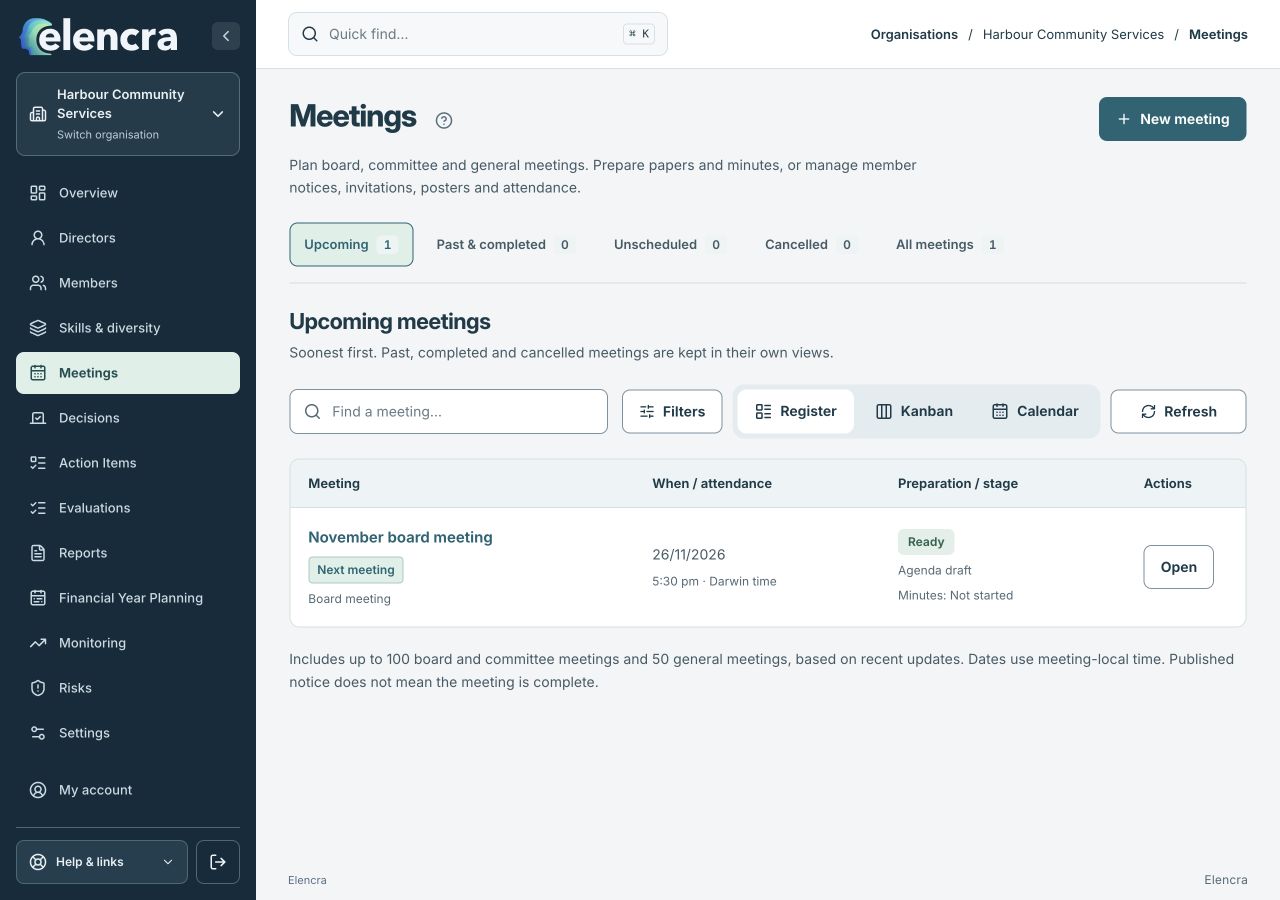
Choose New meeting to start a draft. Open is for an existing meeting.
Actual app interface with fictional records. Your permissions and screen size may change the options shown.
Name the meeting
Enter Meeting name. For a committee meeting, select the configured committee or complete the committee details shown.
- Use a recognisable title, such as “November board meeting”. If using a committee, check its name before moving on.
Choose an agenda structure
Select a suitable Agenda structure if one is available. Templates provide a starting point; review the items for this meeting.
- Read the proposed starting agenda. Remove or change irrelevant items later; a template does not tell you what the board must decide at this meeting.
Add the schedule
Expand Schedule and location. Check the date, Start time, Time zone and format, then add the required Location or Online meeting link. You can leave scheduling for a draft.
- Check the time zone alongside the time. For example, 5:30 pm Darwin time is not the same local time as 5:30 pm Sydney during daylight saving.
Create the draft
Choose Create meeting & agenda. Check the saved meeting and continue preparing its agenda. Creating a meeting does not send invitations.
- After creation, confirm the meeting is in the right organisation. Continue into the agenda; do not assume the new draft has been published or emailed to participants.
Review before creating the draftExample workspaceEnlarge screenshot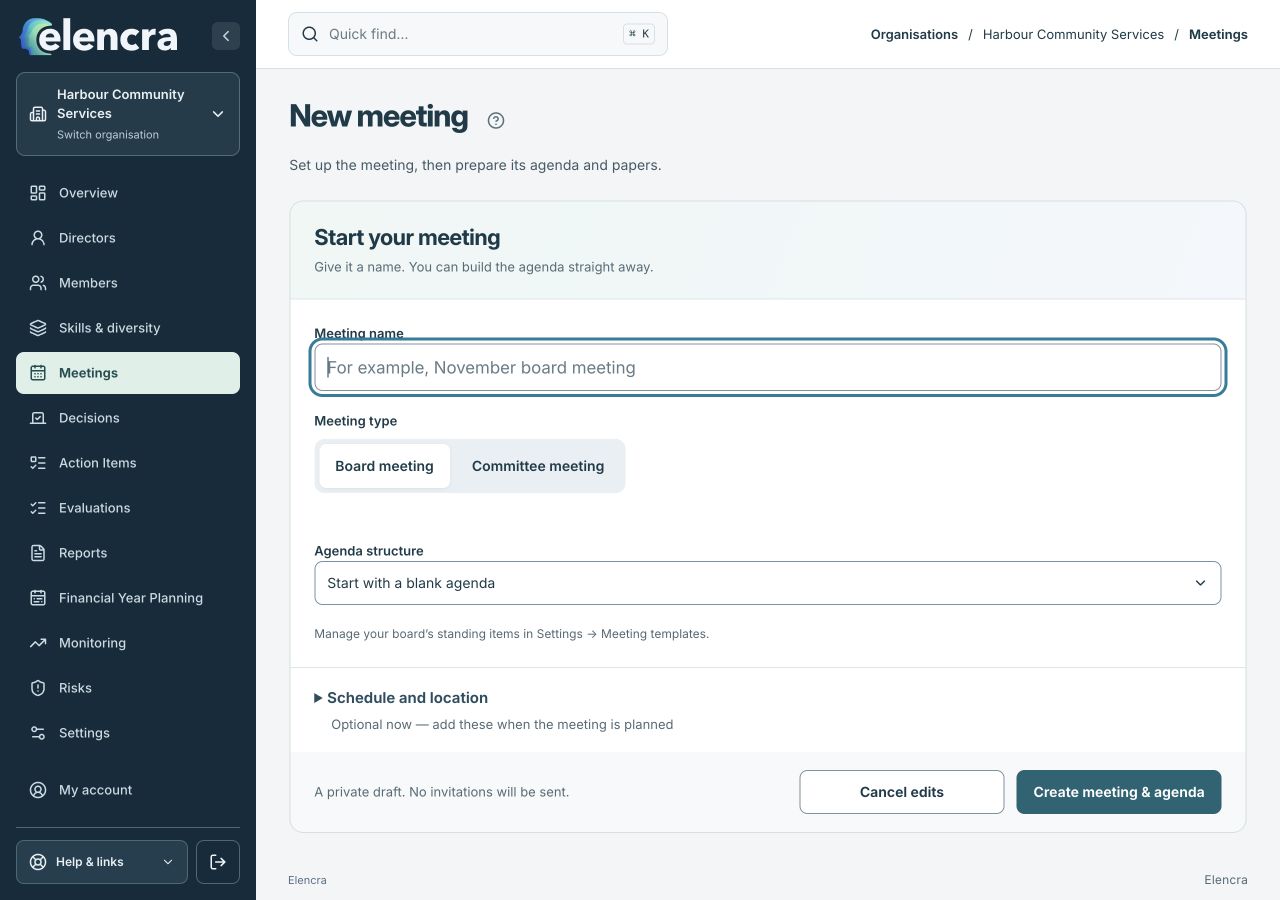
Enter the title and review the form before Create meeting & agenda. This is an unsaved example form.
Actual app interface with fictional records. Your permissions and screen size may change the options shown.
For example
For a hybrid finance committee meeting, choose Committee, check the committee name, then record both a physical location and the online link in the correct time zone.
What you should see
A saved meeting draft is ready for agenda preparation.
- The saved meeting has the correct title and meeting type.
- The date, location and time zone are correct where recorded.
If something looks different
If the committee is not available, ask an Administrator to review committees in Settings. Avoid choosing a different committee just to get past the field.
A common question
Can I create a meeting before its date is confirmed?
Yes, you can prepare an unscheduled draft. Add the confirmed schedule later and check it before publication. An unscheduled draft should not be treated as a notice to participants.
Did this help you move forward?
Your response stays in this browser on this device.
Updated 16 November 2026. Your organisation’s permissions and settings can change the options you see.