
Prepare, review and publish minutes
Keep the written record connected to the meeting, its agenda and the review process.
- Meetings
- Open meeting
- Minutes
Before you start
Check the meeting and agenda version. Have the attendance record and exact decision wording available.
- Confirm who is authorised to prepare, review and approve the minutes.
- Have attendance, declarations and the precise outcomes for each item ready.
Step by step
Open the minutes editor
Open the meeting’s minutes. Use Minutes outline to move between agenda items.
- Choose Minutes in the meeting workflow. Select an item in Minutes outline and check its heading before typing into Discussion notes.
Choose Minutes in the meeting workflowExample workspaceEnlarge screenshot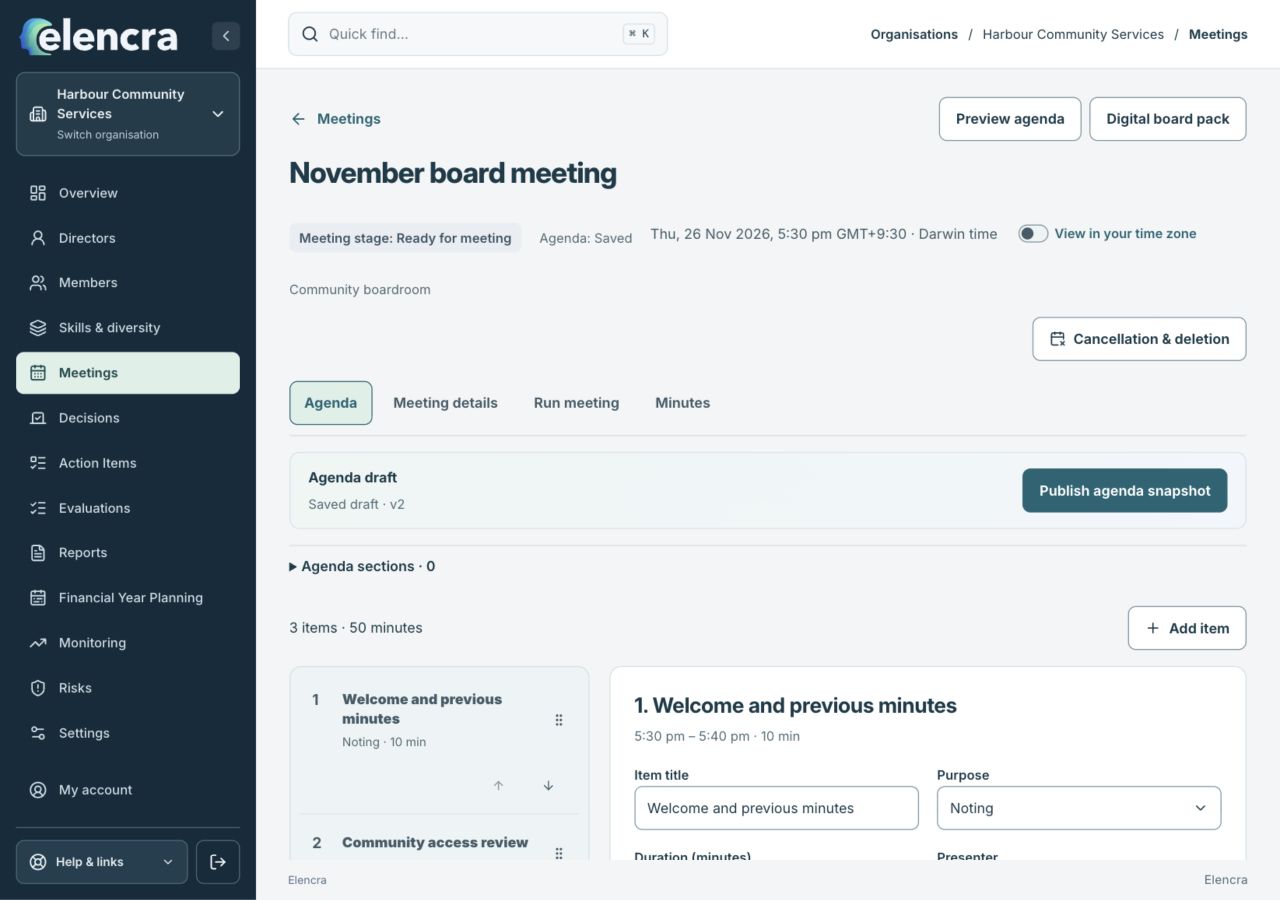
Open the minutes workspace for the meeting you are recording.
Actual app interface with fictional records. Your permissions and screen size may change the options shown.
Write the record
Capture the discussion and outcome against the correct item. Distinguish what was discussed from what was resolved or assigned.
- Use clear factual wording. Record a decision or action through the item’s Decisions and actions controls so the outcome stays connected to the central register.
Keep outcomes with the itemExample workspaceEnlarge screenshot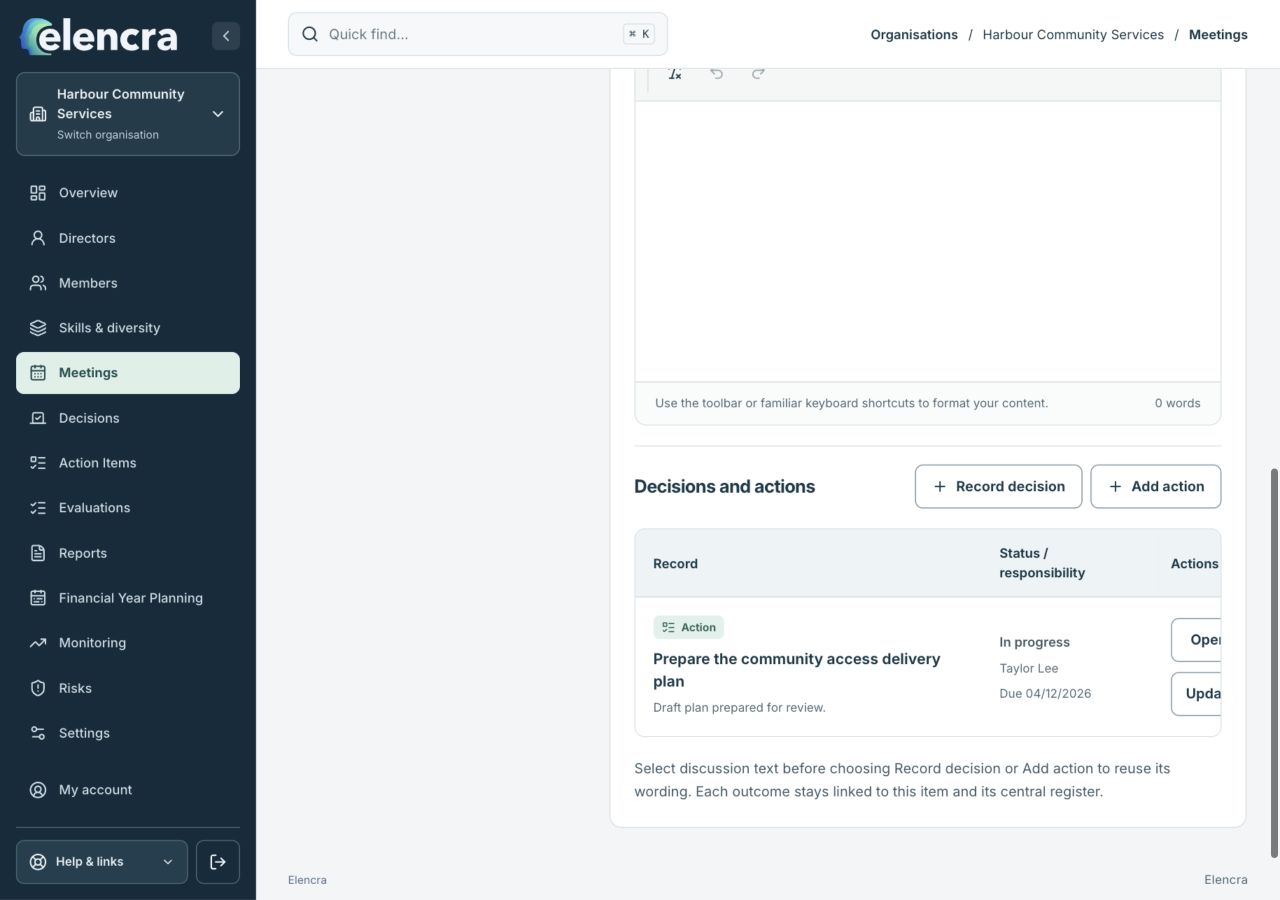
Use Record decision or Add action for outcomes connected to this agenda item.
Actual app interface with fictional records. Your permissions and screen size may change the options shown.
Save and preview
Use Save now, then Preview minutes to review the readable record before asking others to clear it.
- Wait for the saved confirmation. In the preview, check names, dates, item order and the exact wording of resolutions rather than only the discussion summary.
Request clearance
Choose Send for clearance and select the authorised users shown. Work through Review comments and record resolutions or return the minutes to draft with a reason.
- Choose the correct reviewers and inspect any comments against the relevant item. Resolve the underlying wording before treating a comment as dealt with.
Publish through the review path
Use Approve & publish minutes when authorised. Publishing without chair approval is a separate, reasoned exception. For a later correction, use Prepare correction and record why.
- Follow the normal chair-approval path. If an authorised exception is needed, record the reason; do not use an exception simply to avoid an unfinished review.
For example
If the board deferred a budget decision, record the deferral and follow-up rather than writing that the budget was approved.
What you should see
The published minutes retain their review history. Later corrections are deliberate changes rather than silent rewrites.
- The minutes accurately distinguish discussion, decisions and actions.
- The recorded review and publication status matches what actually occurred.
If something looks different
If another edit was saved, compare your retained draft with the saved version before choosing which version to use. Missing clearance users need the appropriate account and Meetings access.
A common question
Can published minutes be silently edited?
Use the correction process offered for published minutes and explain why a correction is needed. Published records should retain a clear history of the original release and subsequent correction.
Did this help you move forward?
Your response stays in this browser on this device.
Updated 16 November 2026. Your organisation’s permissions and settings can change the options you see.