
Add personal notes to a paper
Highlight a passage or leave a text note while reading an authorised paper.
- Paper reader
- Personal notes
Before you start
Open the paper in Elencra’s reader. This review guide describes the note controls; use your own account and sign out when leaving a shared device.
- Check the paper title and exact version before writing a note.
- Decide whether the note is for your own preparation or suitable for other authorised readers.
Step by step
Open the note tools
In the reader, open Personal notes if the controls are collapsed.
- A compact reader can hide the annotation controls under Personal notes. Open that control first if Highlight text and Add text note are not already visible.
Choose the annotation
Use Highlight text to mark a passage or Add text note to leave a note on the page. Select / read returns to normal reading.
- Choose Highlight text, then select the passage in the PDF, or choose Add text note and place it on the page. Use Select / read when you finish annotating.
Use the reader’s note toolsExample workspaceEnlarge screenshot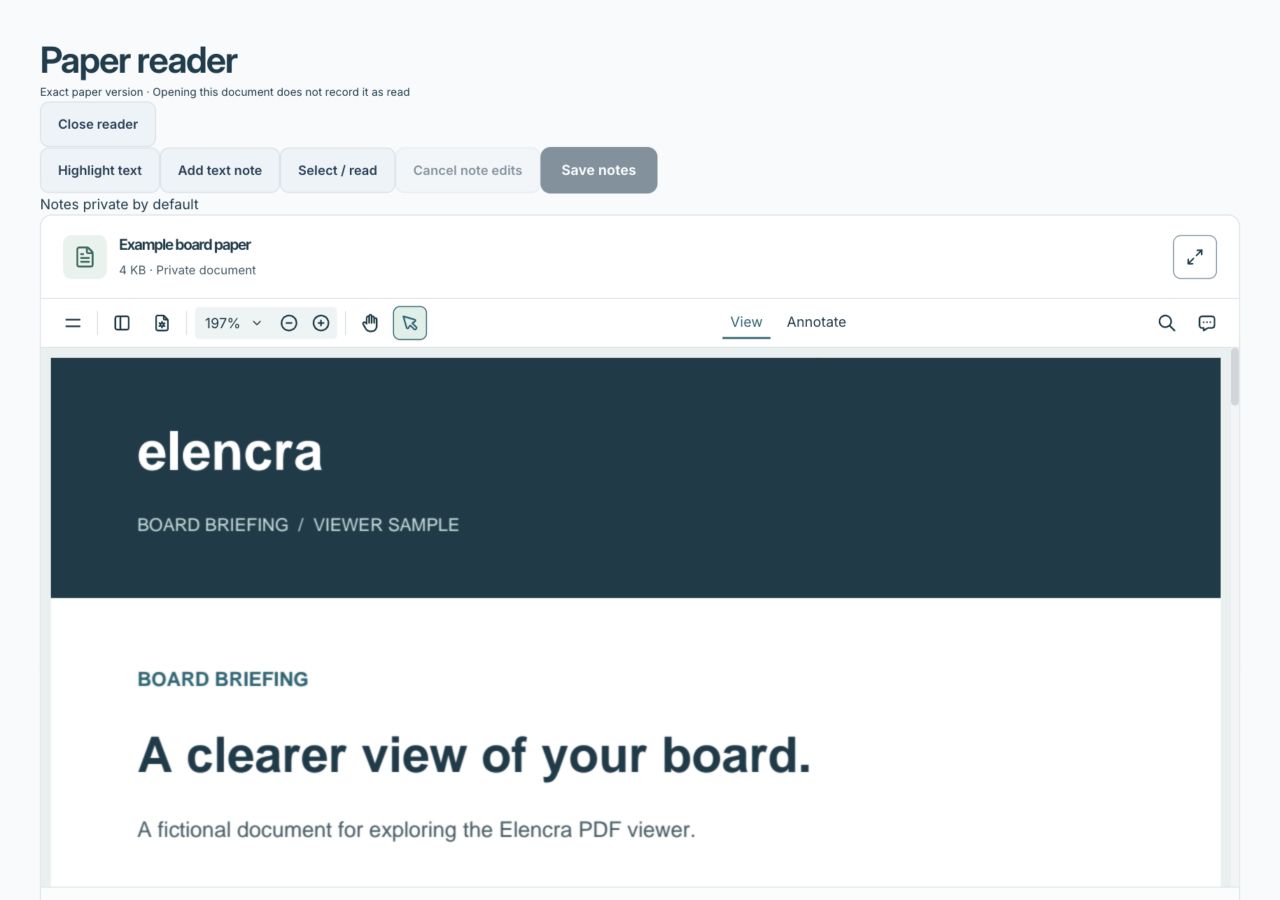
Highlight text and Add text note create annotations. Save notes records changes to this exact version.
Actual app interface with fictional records. Your permissions and screen size may change the options shown.
Review the notes
Check the text and page before saving. Remove an annotation you do not want to keep.
- Read the note in Your annotations and check its page number. Remove an accidental highlight rather than leaving a confusing mark for your next reading session.
Save your changes
Use the note-saving control and wait for Personal notes saved. An unsaved note in an open reader has not necessarily been recorded.
- Choose Save notes and wait for Personal notes saved. If saving fails, keep the reader open and resolve the error before leaving the page.
Treat sharing as a separate decision
Notes are intended to be private by default. If you choose to share one, review the confirmation and save the change. Only share content suitable for other authorised readers.
- Use Share this annotation only for the particular note you intend to share. Review the confirmation, then save; selecting sharing alone does not complete the change.
For example
Highlight the forecast assumptions and write “Ask how the seasonal estimate was calculated.” Keep that preparation note personal unless you deliberately want to share it.
What you should see
Your saved annotation is associated with the paper version you were reading.
- The reader confirms that personal notes were saved.
- The privacy state of each note matches your intention.
If something looks different
Review or publication-preview modes can be read-only. If saving fails, keep the reader open while resolving the error; do not assume the note was saved.
A common question
Will my notes appear on a replacement version of the paper?
Notes stay with the exact document version. Check which version you are reading before looking for earlier notes. They do not edit the original PDF or become part of the official minutes.
Did this help you move forward?
Your response stays in this browser on this device.
Updated 16 November 2026. Your organisation’s permissions and settings can change the options you see.