
Sign in for the first time
Set up your sign-in, then open the organisation you have been invited to join.
- Sign in
- Your organisations
Before you start
Have the organisation’s activation email ready. Use the address the invitation was sent to.
- Use an inbox you can open now, including any organisation spam or quarantine folder.
- Have the name of the board that invited you. This helps you choose the right workspace.
Step by step
Open your activation email
Follow the setup link in the latest invitation from your organisation. If you already have an Elencra account, keep using your existing sign-in method.
- Check the recipient address and organisation in the message. An invitation meant for another address will not automatically belong to your current account.
Complete secure sign-in
New accounts follow the hosted password setup. Enter your password and any verification or authentication codes only on the secure sign-in page.
- Follow the instructions on the hosted sign-in page. Keep that page open until it confirms the next step; avoid starting several password-setup requests.
Open Elencra
Go to app.elencra.com and sign in with the invited address. Complete any verification prompts shown.
- Use your usual sign-in method if you already have an account. If the browser chooses another saved account, sign out and use the invited one.
Choose your organisation
On Your organisations, open the board you want to work with. The tools you can see depend on the access that organisation has given you.
- Use Find a board if several organisations are listed. The screenshot below shows this screen after sign-in, rather than the password-setup page.
Choose your board after sign-inExample workspaceEnlarge screenshot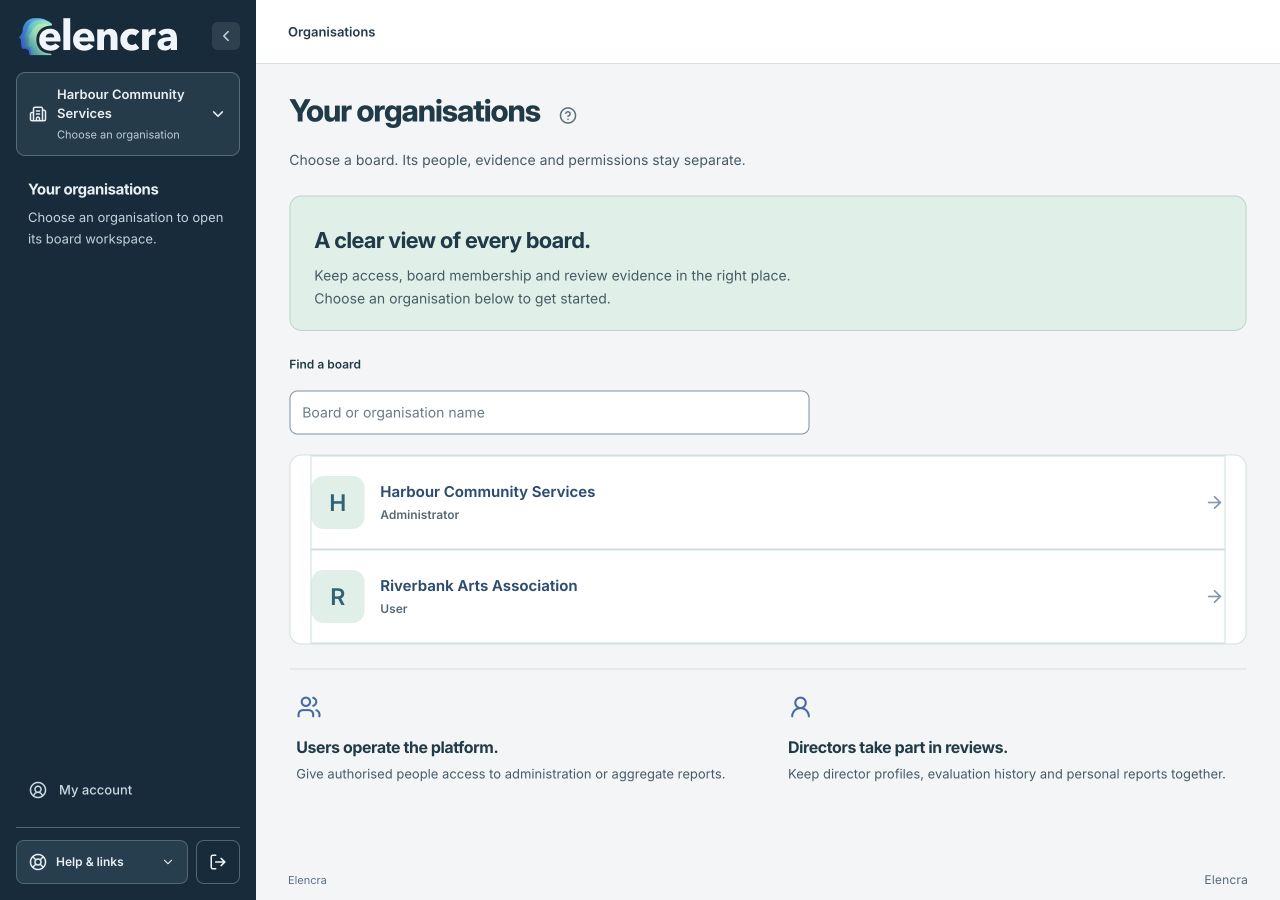
This is the organisation screen after a successful sign-in. Open the board named in your invitation.
Actual app interface with fictional records. Your permissions and screen size may change the options shown.
For example
You already use Elencra for one board and receive an invitation from another. Sign in to your existing account, then choose the new organisation; you do not need a second account.
What you should see
Your chosen organisation opens with the sections you are permitted to use.
- The organisation name matches your invitation.
- The workspace opens without asking you to create another account.
If something looks different
If a link has expired, ask the inviting Administrator for a new invitation. If the board is missing, confirm the invited address before creating another account.
A common question
I already use Elencra. Do I need to register again?
Usually, no. An organisation invitation adds access to that organisation. Keep using your existing account. If the new board is missing, ask its Administrator to confirm the invited address and the invitation status.
Did this help you move forward?
Your response stays in this browser on this device.
Updated 16 November 2026. Your organisation’s permissions and settings can change the options you see.