
Move between organisations
One account can belong to several organisations. Choose the right workspace before viewing or changing a record.
- Organisation selector
- Your organisations
Before you start
Save or cancel any edits in your current workspace first.
- Finish saving your current record, or cancel the edits you do not want to keep.
- Check the full organisation name, especially where two boards have similar names.
Step by step
Open the organisation selector
Choose the organisation name in the workspace navigation. On a small screen, open the board navigation first.
- The selector is the organisation name near the top of the board navigation. Opening it takes you back to your available organisations.
Find the board
Use the organisation list or Find a board to locate the organisation you need.
- Type a distinctive part of the name. Clear the search if the board you expect is not in the filtered list.
Find the right organisationExample workspaceEnlarge screenshot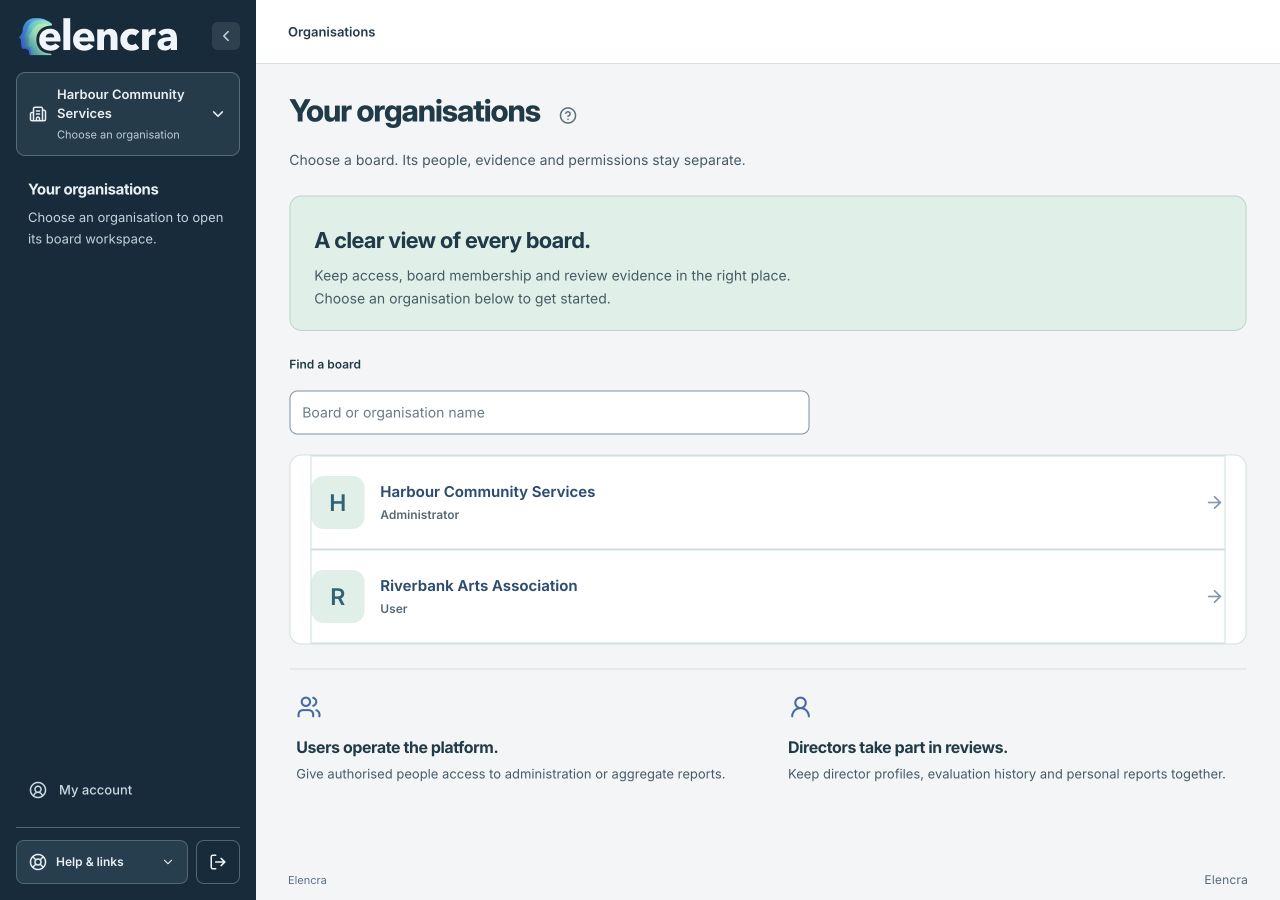
Use the search to narrow the list, then choose the board card.
Actual app interface with fictional records. Your permissions and screen size may change the options shown.
Open its workspace
Choose the organisation and check its name in the navigation before continuing.
- Choose the board card, then check the organisation name again before opening people, papers or settings. This matters when you work for several boards.
Check the available tools
Your role and section access can be different for each organisation. A tool available on one board may not be available on another.
- Check the tools in the new workspace. Do not copy a restricted record from another organisation to get around a missing section or permission.
For example
You are an Administrator for a community organisation and a User on another board. Switching boards changes what you can manage; it does not change your global account.
What you should see
The selected organisation’s records and permissions are shown.
- The selected board name appears in the workspace navigation.
- The record you open belongs to that board.
If something looks different
A missing organisation usually needs an invitation or an access review by that organisation’s Administrator. Do not use a similarly named organisation as a substitute.
A common question
Why can I manage one board but only read another?
Each organisation gives you its own role and section access. Changing organisations does not change those permissions. Ask the Administrator of the board concerned if your access needs reviewing.
Did this help you move forward?
Your response stays in this browser on this device.
Updated 16 November 2026. Your organisation’s permissions and settings can change the options you see.