
Update your name and board contact details
Keep your personal display name separate from the contact details held in a director record.
- My account
- Profile / Board contact details
Before you start
Know whether you want to change your account display name or a board’s director contact record.
- Decide whether the change is personal or belongs to a particular board record.
- Have the correct spelling and contact details ready before editing.
Step by step
Open My account
Choose My account from the workspace navigation.
- My account is in the board navigation. It also provides access to email, security and organisation membership information, so check the tab before changing anything.
Update your display name
In Profile, edit Personal display name and choose Save name. This changes your Elencra display name, not appointment or governance history.
- Replace only the personal display name you want to change. Choose Save name and wait for the result before leaving the page.
Edit your personal display nameExample workspaceEnlarge screenshot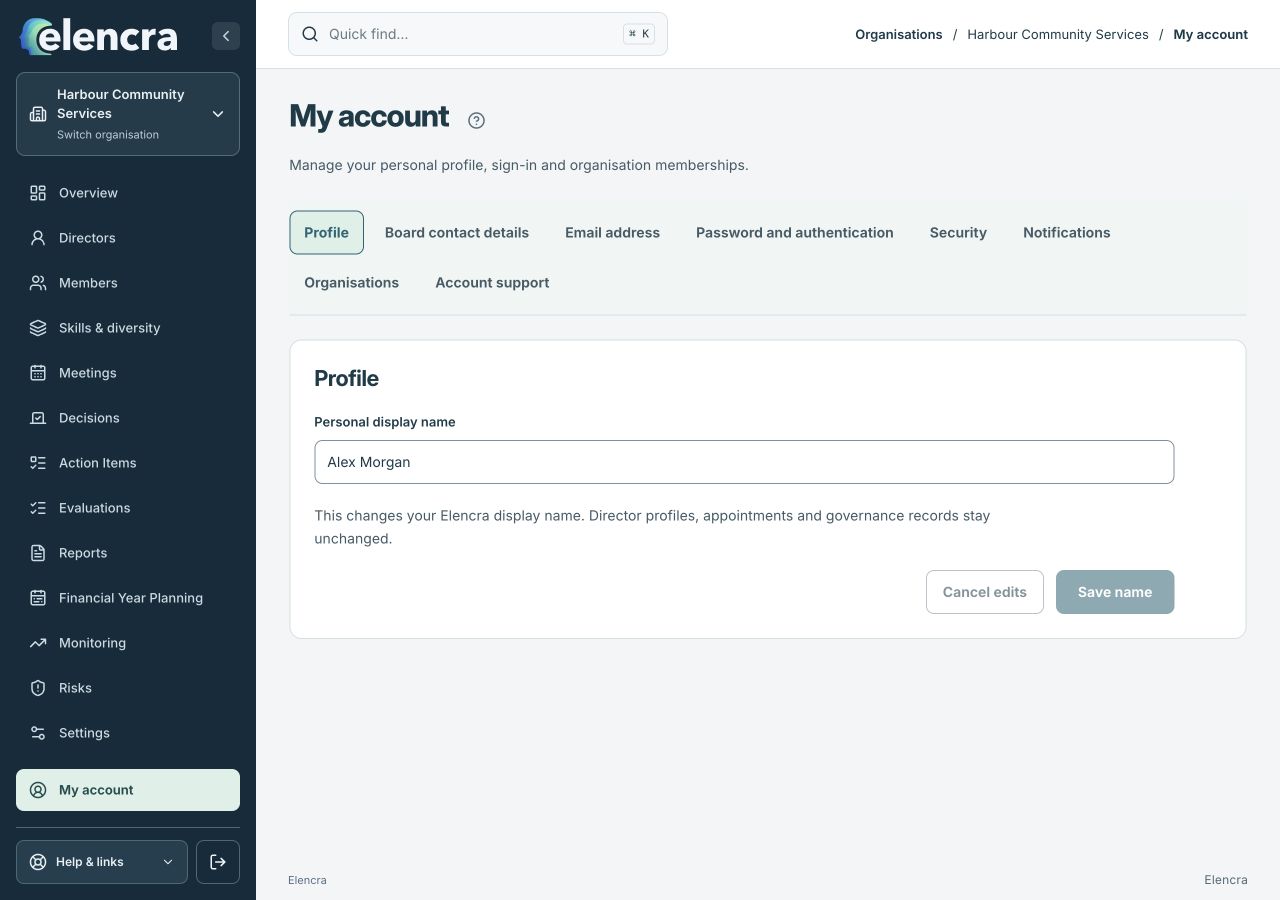
Save name applies to this account profile. Board contact records are managed separately.
Actual app interface with fictional records. Your permissions and screen size may change the options shown.
Check board contact details
Open Board contact details to review the director records linked to your account. Use the available editing controls for the relevant organisation.
- A director contact entry belongs to a particular organisation. Check that organisation’s name and the linked person before using any available edit control.
Review the saved details
Check the correct organisation and record. If a field is not editable, ask its Administrator to review the director profile.
- Return to the saved view and read back the spelling or number. An account name update is separate from a change to a director’s appointment or role.
For example
Changing “Alex Morgan” to “Alex J. Morgan” in Profile does not automatically rewrite a director appointment or change the account’s login email.
What you should see
Your saved personal name or authorised board contact details are updated in the right place.
- The saved field contains the intended value.
- You changed the account or board record you meant to change.
If something looks different
A director record must be explicitly linked to your account. If the expected record is absent, ask an Administrator to check the link; matching names alone do not establish it.
A common question
Why is my director profile still showing the old name?
The account display name and the board’s director record serve different purposes. Check the linked board contact record, or ask that organisation’s Administrator to update the director profile.
Did this help you move forward?
Your response stays in this browser on this device.
Updated 16 November 2026. Your organisation’s permissions and settings can change the options you see.