
Find your way around the workspace
Know where to look for people, meetings, follow-up and reporting.
- Your organisation
- Board navigation
Before you start
Select an organisation. Navigation only shows the tools your role can use.
- Have a task in mind, such as preparing papers or checking an overdue action.
- On a small screen, open the board navigation to see the tool names.
Step by step
Start with Overview
Use Overview for a starting picture of the board’s work and links to the underlying records. Open the record to see its full context.
- Use the summary as a starting point. A count or status is a prompt to inspect the underlying record, not the whole explanation of what happened.
Choose the area of work
Use Directors for people, Meetings for agendas and papers, Decisions for resolutions, and Action Items for follow-up.
- Choose Meetings for meeting preparation and reading. Choose Action Items when the meeting has already assigned follow-up work and you want to update it.
Choose a tool by the taskExample workspaceEnlarge screenshot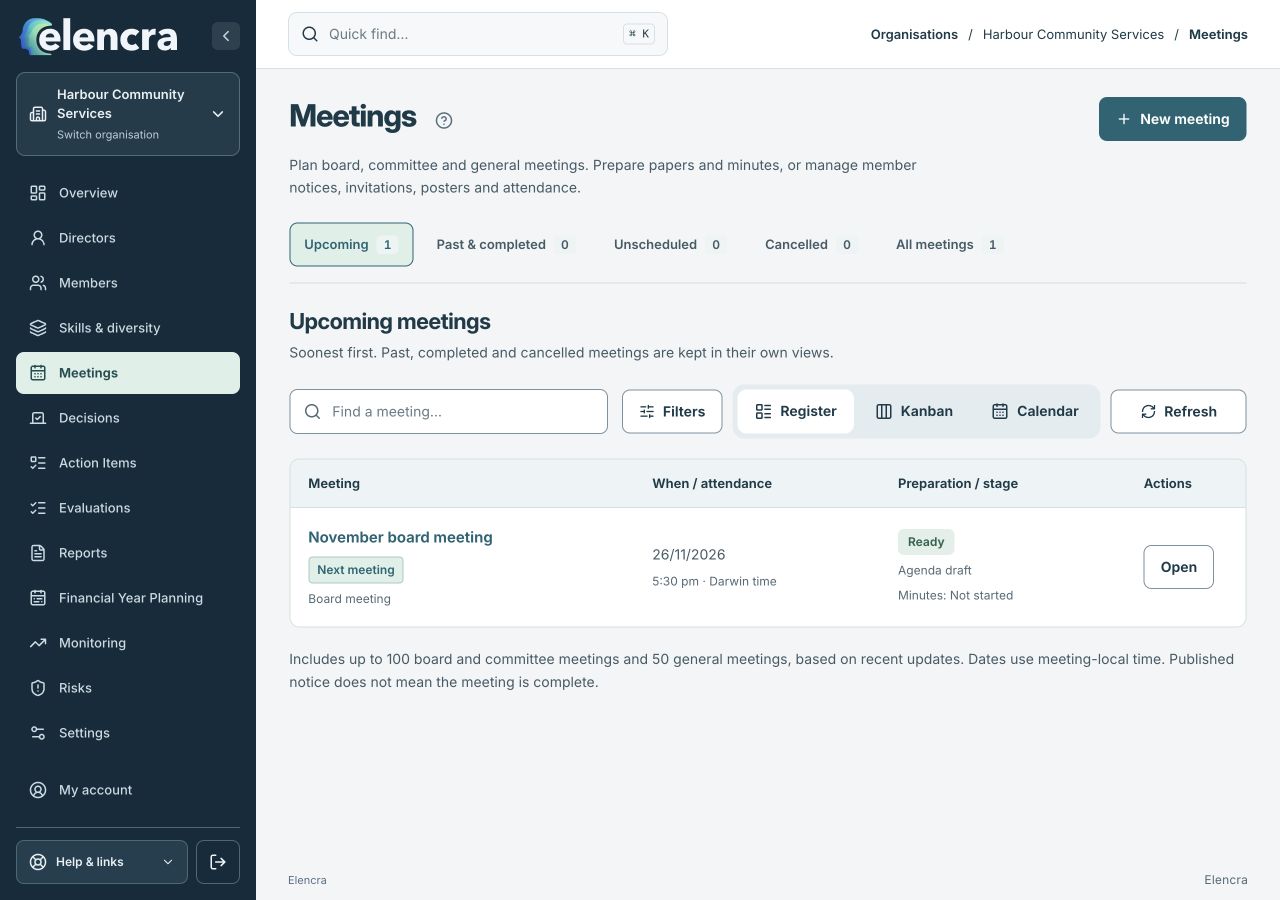
The labelled board navigation keeps meetings, follow-up and reporting in separate places.
Actual app interface with fictional records. Your permissions and screen size may change the options shown.
Find oversight and reporting
Use Monitoring and Risks for connected oversight, Financial Year Planning for the reporting cycle, and Reports for outputs.
- Use Reports when you need to bring information together for a discussion. Check the source records if a report needs correcting; do not assume the report edits them.
Use your personal controls
My account manages your personal sign-in and profile. Organisation Settings manages the selected organisation and is restricted by role.
- Use My account for your own name and sign-in. Use Settings for the selected organisation only when your role allows it.
For example
To check what happened after the last board meeting, start with Action Items rather than creating a new monitoring record for the same task.
What you should see
You can choose a tool by the task you want to complete, rather than searching through unrelated records.
- You know which tool holds the original record.
- You have checked the organisation before starting an edit.
If something looks different
If the menu is compact, expand it to show its labels. On mobile, open the board navigation. Missing tools can reflect permissions rather than a display problem.
A common question
Is an empty register the same as missing access?
No. An empty list can mean that no records match the current search or filters. A missing tool can reflect your role. Clear filters first, then ask the organisation’s Administrator to check access if needed.
Did this help you move forward?
Your response stays in this browser on this device.
Updated 16 November 2026. Your organisation’s permissions and settings can change the options you see.